AI Agents
The XGENIA AI Agents is in early alpha. Panels, settings, and available models change often — screens in this guide may look slightly different from your build.
AI Agents is a chat panel built into the XGENIA editor. You describe what you want in plain language, and it works directly on your project: creating components, placing and wiring nodes, writing JavaScript functions, generating images, taking screenshots of your running app, and checking its own work.
It is not a chatbot you copy answers out of. It has hands on the editor.
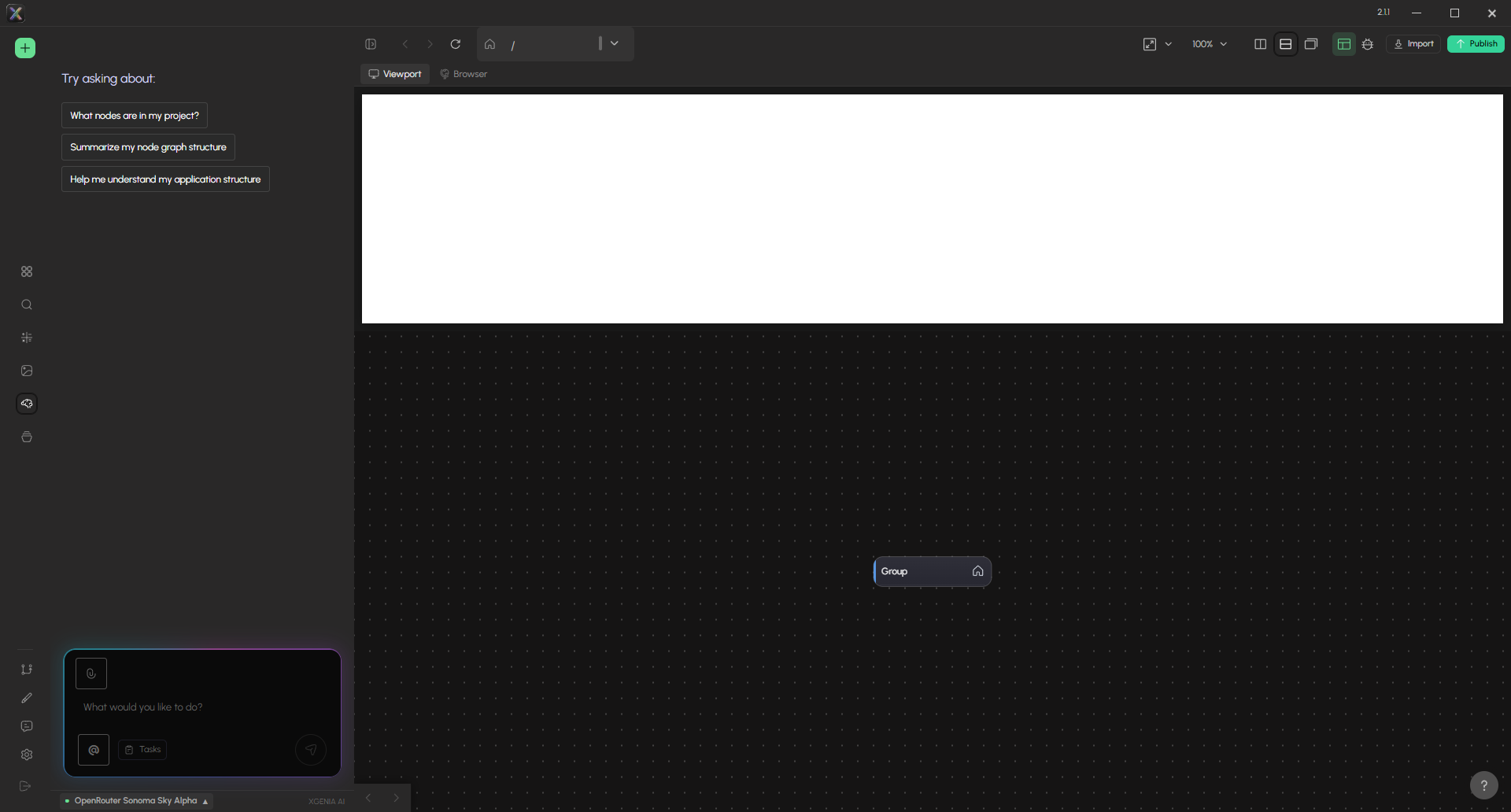
Where to find it
Open the Chat panel from the editor's left sidebar.

The panel is docked, so it stays open beside your canvas while the AI works — you see nodes appear and connections form in real time.
Requirements
| Requirement | Detail |
|---|---|
| XGENIA Pro | AI Agents is a Pro feature. Free accounts see an upgrade prompt instead of the chat. |
| Signed in | You must be signed in to your XGENIA account — the panel validates your session before it will talk to a model. |
| An OpenRouter API key | You bring your own key. See Models & Providers. |
What it can do
| Area | Examples |
|---|---|
| Build UI | Create components, generate layouts from a description, import a design, arrange and restyle elements |
| Wire logic | Place logic nodes, connect signals and data, write and edit JavaScript function nodes, build state managers |
| Inspect | Read your node graph, trace where a signal goes, find nodes by label, search project code |
| Debug | Read console and runtime logs, simulate signals, check connection health, repair broken graphs |
| See your app | Open a browser preview, click and type in it, take screenshots, and analyse what it looks like |
| Generate media | Create and edit images, upscale, split layers, generate video and audio |
| Deploy | Push to Vercel, connect Supabase, commit and checkpoint with Git |
The full catalogue is in What the AI Can Do.
How a conversation works
- You describe a goal — "make a login screen with an email field, a password field, and a sign-in button that turns green when both are filled".
- The AI plans. For anything non-trivial it writes a task list you can watch in the Tasks panel.
- The AI calls tools. Each step appears as a small bubble in the chat — click one to see exactly what it did.
- The AI verifies. It re-reads the graph, checks connections, and often takes a screenshot to confirm the result matches what you asked for.
- You review. Some actions — running code, generating key art — post an approval card. Neither blocks the build: a code card expires if you ignore it, a key-art card auto-approves. Deal with them while they are on screen.
You can press Stop at any point. Work already applied to the graph stays; use editor undo or a Git checkpoint to roll back.
Where to go next
| Guide | What it covers |
|---|---|
| Getting Started | Sign in, add your key, pick a model, run your first prompt |
| The Chat Panel | Every control in the panel, explained |
| Models & Providers | Choosing a model, sub-agents, routing and sampling |
| Pre-Prompt Rules | Standing instructions the AI follows in every conversation |
| Images & Vision | Showing the AI screenshots, mockups, and reference art |
| What the AI Can Do | The tool catalogue |
| Tools & Integrations | Fal.ai and Google Fonts keys |
| MCP Servers | Adding external tools |
| Image, Video & Audio | Media generation models and approval |
| Skills & Knowledge | What the AI remembers about your project |
| Messaging | Driving the AI from Telegram |
| Claude Code | Driving the whole editor from outside, over MCP |
| MCP Tool Reference | The 17 tools that expose the editor to an outside agent |
| The xgenia-mcp Skill | Traps, recovery, and verifying a change reached the editor |