Messaging
The XGENIA AI Agents is in early alpha. This tab changes often.
Connect a Telegram bot and you can drive AI Agents from your phone — send instructions, get progress back, approve work — while the editor keeps building on your machine.
Open the Provider & Tools gear, then the Messaging tab.
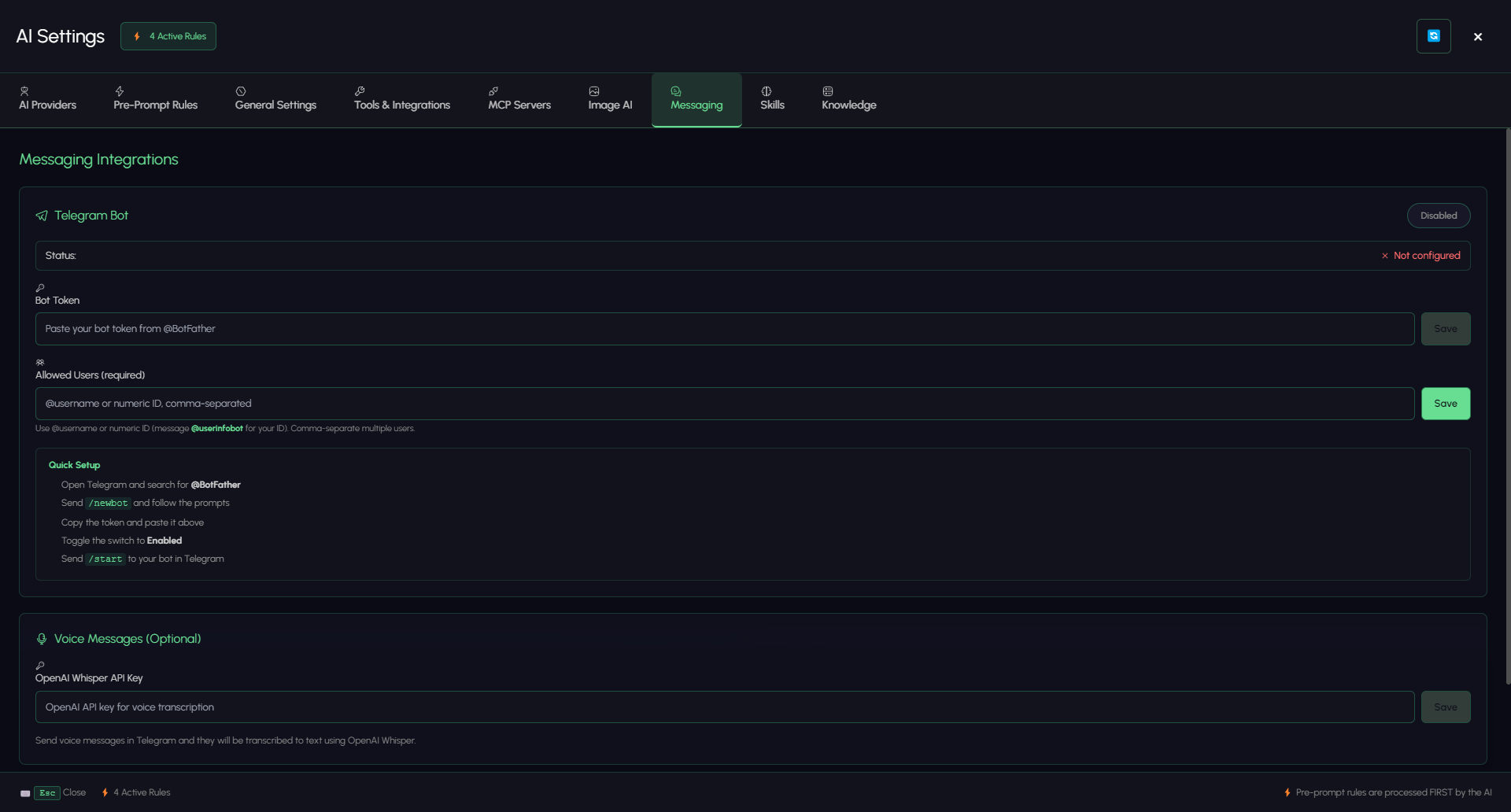
Setting up the bot
The tab spells out the sequence under Quick Setup:
- Open Telegram and search for @BotFather.
- Send
/newbotand follow the prompts. - Copy the token and paste it into Bot Token, then Save.
- Toggle the switch to Enabled.
- Send
/startto your bot in Telegram.
The status line tracks where you are:
| Status | Meaning |
|---|---|
| Not configured | No token saved yet |
| Token saved — toggle to start | Token stored, bot not running |
| Running @yourbot | Live and listening |
Only the last four characters of a saved token are shown. Remove clears it.
Restricting who can talk to it
The bot drives your editor, so leaving it open to anyone who finds it is not sensible.
Allowed Users is marked required. Fill it with @username or numeric IDs, comma-separated — anyone not on the list is ignored. To find your numeric ID, message @userinfobot on Telegram.
Voice messages (optional)
Add an OpenAI Whisper API key and voice notes sent to the bot are transcribed to text before the AI reads them. Handy for dictating a change while you are away from the machine.
This is the one place a non-OpenRouter model key is used, and it is optional — leave it empty and the bot simply ignores voice messages.
What it is good for
- Kicking off a build on the way somewhere and reading the result when you arrive
- Checking how a long job is going without switching back to the editor
- Sending a screenshot from your phone and asking what is wrong with it
The editor must be open and the bot enabled — the AI works inside your running editor, not on a server.