Image, Video & Audio
The XGENIA AI Agents is in early alpha. Model lists and pricing change often.
The assistant can generate media directly into your project — key art, textures, UI assets, video clips, audio. Two settings tabs control it: Tools & Integrations for the key, Image AI for the models.
Step 1 — Add a Fal.ai key
Open the Provider & Tools gear, then Tools & Integrations.
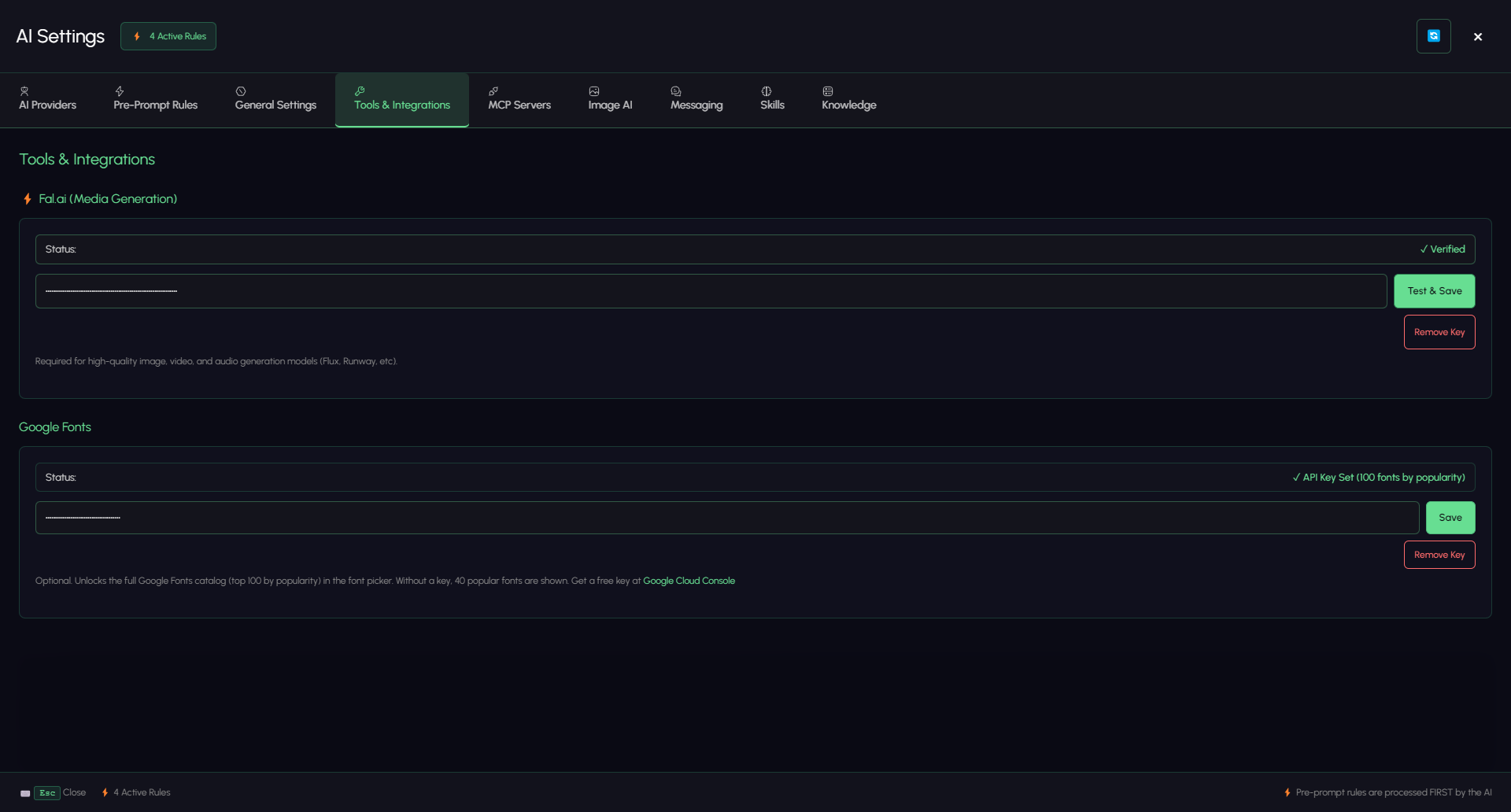
Media generation runs on Fal.ai and needs its own key — your OpenRouter key does not cover it. Full detail on both keys is in Tools & Integrations.
- Paste the key into the Fal.ai field.
- Click Test & Save. The status line flips to ✓ Verified.
Without a verified key, image, video, and audio generation are limited or unavailable, and the tab shows a warning to that effect. Remove Key clears it.
Step 2 — Choose your models
Open the Image AI tab.
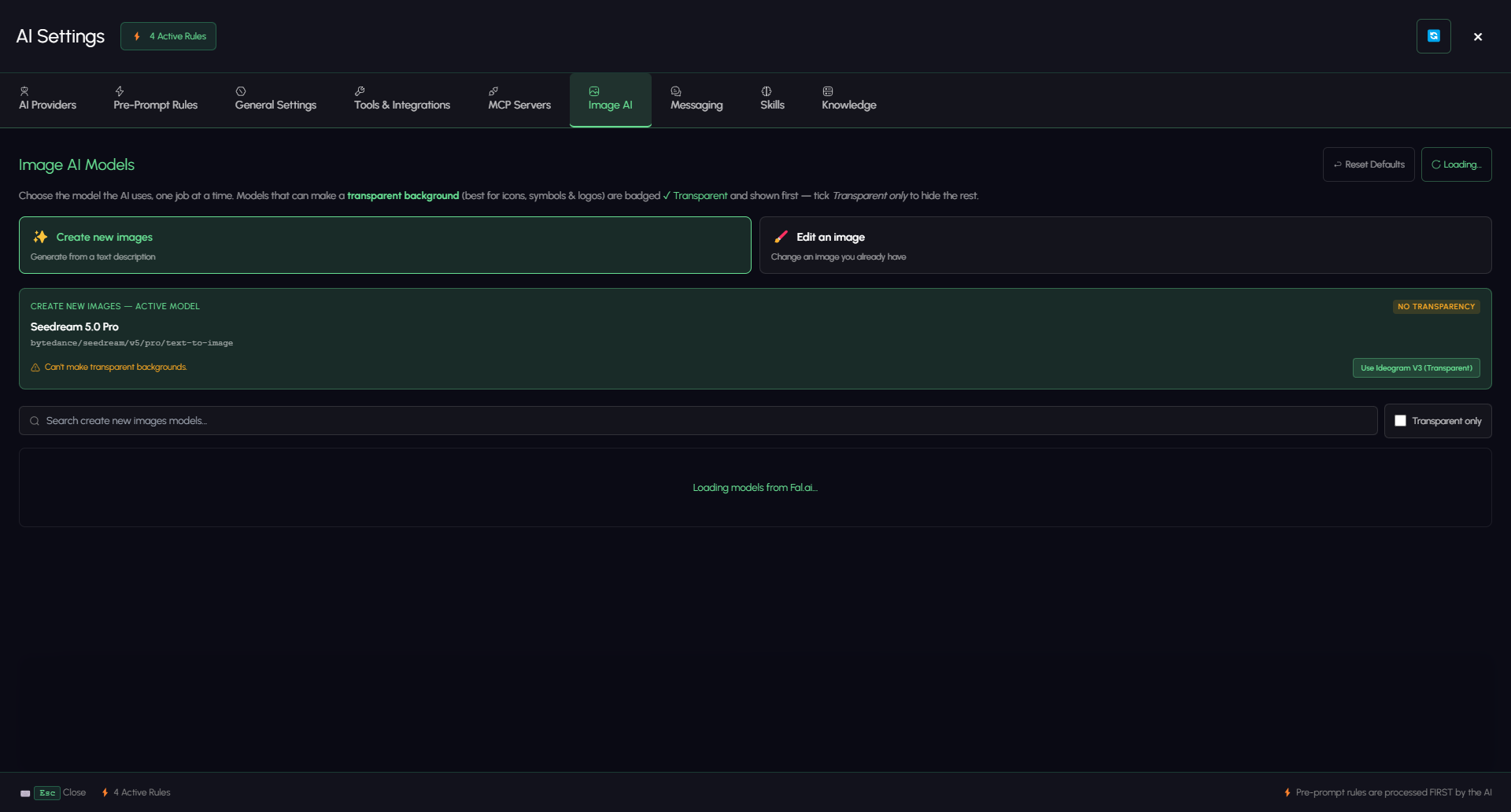
The tab opens on Image AI Models, with Reset Defaults and a live load from Fal.ai. Models are organised by what you are trying to do, not by technical category:
| Mode | What it is for |
|---|---|
| ✨ Create new images | Generate from a text description |
| 🖌️ Edit an image | Change an image you already have |
Pick one model per mode. That model is what the AI uses whenever it generates or edits for you.
Reading the badges
| Badge | Meaning |
|---|---|
| $ | Low cost — roughly under $0.01 per image |
| $$ | Moderate — roughly $0.01–0.05 per image |
| $$$ | Premium — varies by quality, can exceed $0.05 per image |
| No transparency | This model only produces opaque images |
Cost is billed to your Fal.ai account, so the tier badge is worth reading before you set a premium model as the default for a long session.
Transparent backgrounds
UI assets, icons, and sprites usually need an alpha channel. Tick Transparent only to hide models that cannot produce one.
Models that can produce one are badged ✓ Transparent and listed first.
If your active model cannot do transparency the tab says so on the active-model card — Can't make transparent backgrounds — and offers a one-click switch to a recommended alternative for that mode. Worth checking before you generate forty opaque icons.
Step 3 — Ask for media
Generate a dark fantasy key art for this game, 16:9, moody lighting.
Make a transparent icon of a coin, 512×512, flat vector style.
The AI can also edit, upscale, split an image into layers, inspect an image, and save the result straight into your project's assets.
Approval
Generated key art arrives as a card in the chat. Two banners sit above the image: the live countdown, and a plain statement of the stakes — "This becomes the project style anchor. Every image after it is generated as a variation of this one." Under the image, PROMPT THAT MADE IT holds the exact prompt that produced it, scrollable in full.
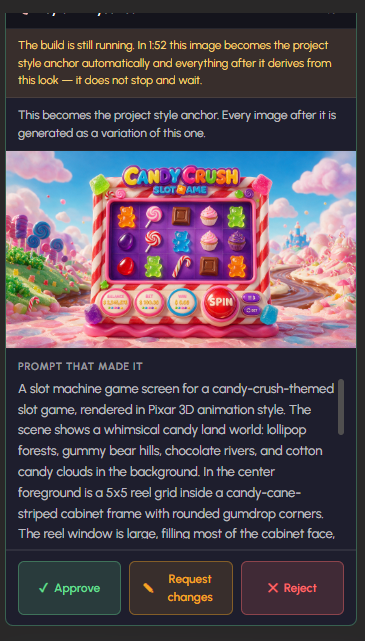
Three buttons:
| Button | What happens |
|---|---|
| ✓ Approve | The image becomes the project style anchor |
| ✎ Request changes | Opens a revision editor — see below |
| ✕ Reject | Discards it; nothing derives from this image |
Request changes gives you two ways to ask for a revision, and you can use either:
- What should change? — say it in words ("warmer light, drop the border"). The AI rewrites the prompt for you.
- …or rewrite the prompt yourself — edit the original prompt directly when you know exactly what wording is wrong.
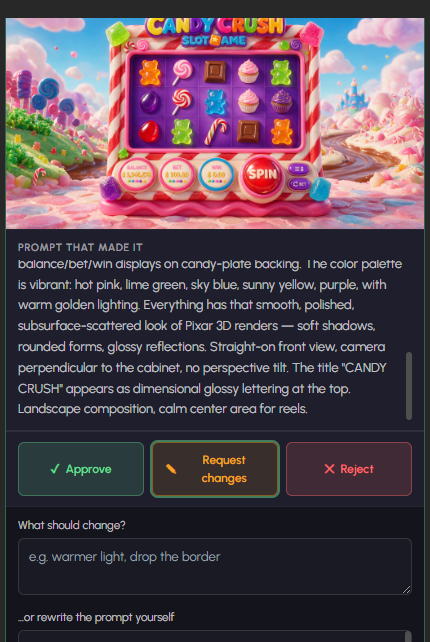
This gate is on a two-minute timer, and the card says so: "The build is still running. In 1:52 this image becomes the project style anchor automatically and everything after it derives from this look — it does not stop and wait."
If nobody answers, the image is auto-approved and the build carries on. The card then tells you plainly what happened: "Nobody answered, so this image became the project style anchor and the build carried on."
So this is not an approval you can leave sitting while you make coffee. If you are running a long build that generates key art, stay near the panel for that step — or be ready to redo everything that derived from a look you never chose.
Why the style anchor matters
An approved key art is not just an accepted image. It becomes the project's style anchor: every image generated after it is produced as a variation of this one, so the whole asset set holds together.
That is what makes the two-minute gate consequential. Rejecting a mediocre first image costs you one regeneration. Letting it through costs you the look of every asset that follows.