Tools & Integrations
XGENIA AI Agents is in early alpha. This tab changes often.
Your OpenRouter key buys you a language model. It does not buy you image generation or the font catalogue — those are separate services with separate keys, and they live on the Tools & Integrations tab.
Open the Provider & Tools gear to bring up AI Settings, then Tools & Integrations.
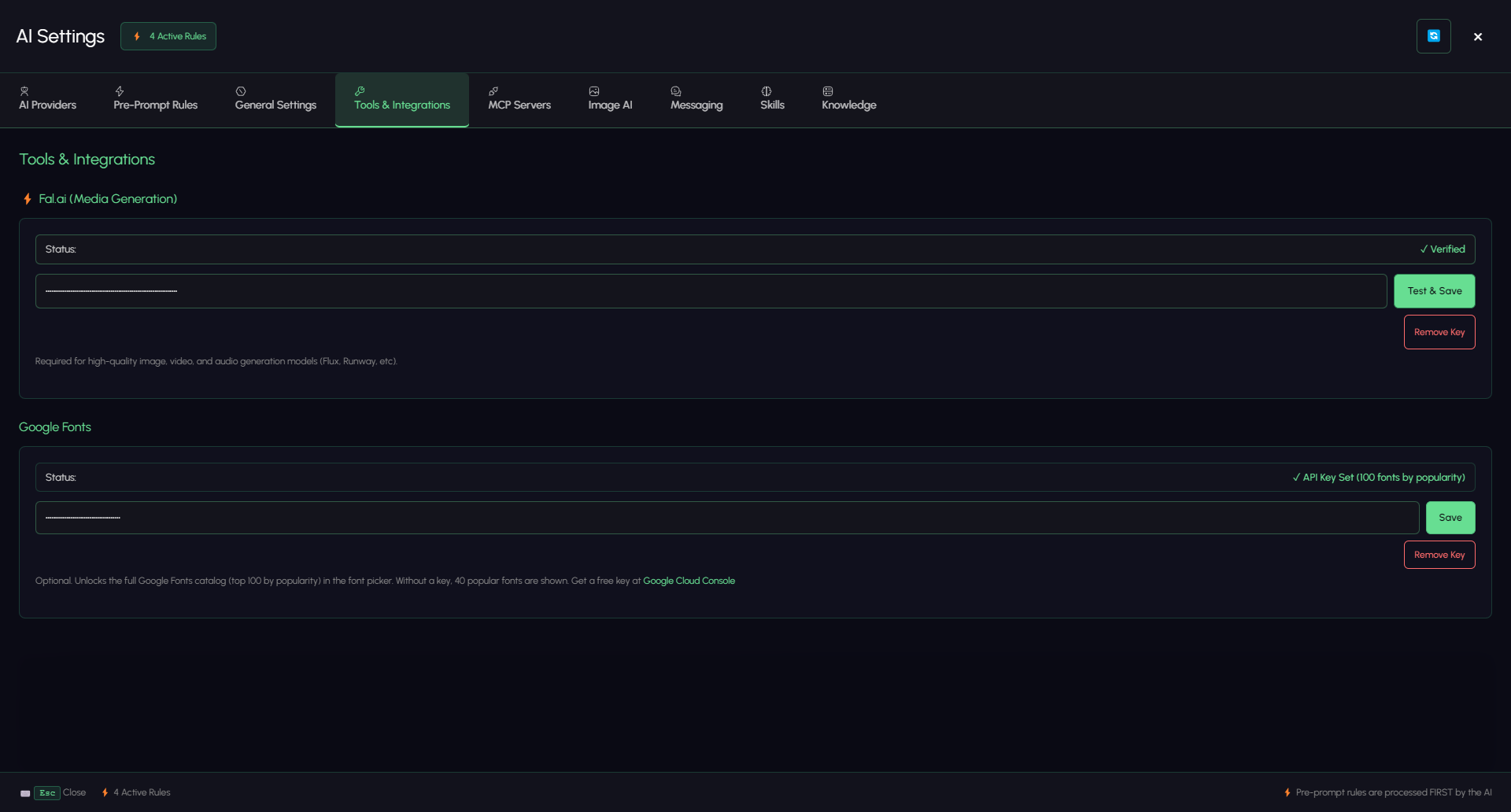
Two keys sit here. Both are entered the same way: paste, save, and read the Status line to confirm it took.
Fal.ai — media generation

Everything the AI generates that is not text runs through Fal.ai: images, video, audio.
- Create a key at fal.ai.
- Paste it into the field.
- Click Test & Save — the key is verified against Fal.ai before it is stored.
- Status flips to ✓ Verified.
| Status | Meaning |
|---|---|
| ✓ Verified | Key accepted; media generation is available |
| ✗ Not verified | No usable key. The tab warns that image, video, and audio generation will be limited or unavailable |
Remove Key deletes it.
Without this key, asking the AI for art fails or falls back to something much worse — and the failure is easy to misread as the AI being bad at images rather than as a missing key. If you plan to generate anything visual, set it before your first build, not after your first disappointment.
Billing is on your Fal.ai account, separate from OpenRouter. Which model gets used, and what each one costs, is set on the Image AI tab.
Google Fonts — the font catalogue

Optional, and cheap to add.
| Without a key | With a key |
|---|---|
| A curated list of 40 popular fonts | The top 100 by popularity from the full Google Fonts catalogue |
Get a free key from the Google Cloud Console, paste it in, and click Save. The status line reports ✓ API Key Set (100 fonts by popularity).
This one only matters when typography matters. If the AI keeps reaching for the same handful of faces and none of them fit your design, this is usually why — it is picking from 40 options, not thousands.
Which key does what
| Key | Tab | Needed for |
|---|---|---|
OpenRouter (sk-or-…) | AI Providers | The AI itself — required |
| Fal.ai | Tools & Integrations | Image, video, and audio generation |
| Google Fonts | Tools & Integrations | A wider font list when the AI picks type |
| OpenAI Whisper | Messaging | Transcribing Telegram voice messages — optional |
Only the first is mandatory. The rest unlock specific capabilities, and the AI will tell you it cannot do something long before it tells you which key is missing — so it is worth knowing this list.
General Settings
The General Settings tab sits between Pre-Prompt Rules and Tools & Integrations. It is currently a placeholder for AI behaviour and response preferences; there is nothing to configure there yet.