Images & Vision
The XGENIA AI Agents is in early alpha. Behaviour described here changes often.
The fastest way to fix something visual is to show it. The AI panel accepts images in the message box, and the AI can also go and look at your app on its own.
Sending an image
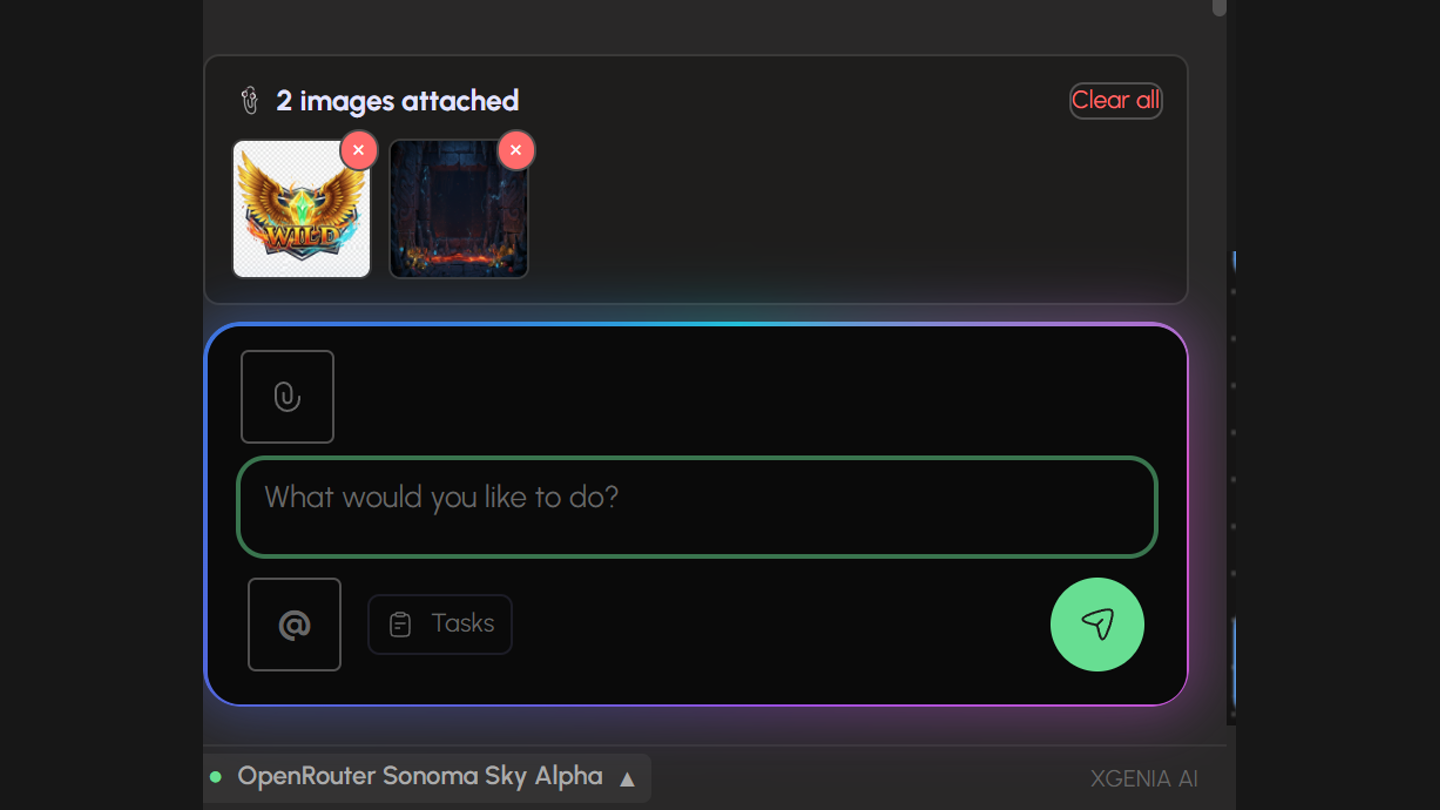
Three ways, all equivalent:
| Method | How |
|---|---|
| Attach | Click the 📎 paperclip and pick one or more image files. |
| Drag and drop | Drag images onto the input area — it highlights to confirm the drop target. |
| Paste | Copy a screenshot and press Ctrl+V (Cmd+V) in the message box. A short confirmation appears under the input. |
Attached images appear as thumbnails above the box. Remove one with its ×, or drop them all with Clear all. You can attach several at once — useful for a before/after pair, or a mockup plus the current state.
You can send images with no text at all, but a sentence of context helps: "this is the reference" versus "this is what's broken" leads to very different work.
What to send
| You want | Send |
|---|---|
| A layout built to match a design | The mockup, plus a note on which parts matter |
| A visual bug fixed | A screenshot with the problem visible |
| A style copied | An existing screen from your app, or a reference image |
| A misplaced element moved | A screenshot — much faster than describing coordinates |
The AI looking for itself
You do not always have to take the screenshot. The assistant can open your app in a browser preview, interact with it, and look at the result:
- open the preview and navigate it
- click, type, and trigger interactions
- take a screenshot of the current state
- read the browser console for errors
- measure and compare regions against reference art
This is how it verifies its own work. When it says a screen is done, it has often looked at it.
The vision sub-agent
Not every model can see images, and a model that can see them still tends to report what it expected to build rather than what is on screen. So a separate vision sub-agent — a vision-capable model you choose in Models & Providers — reviews screenshots independently.
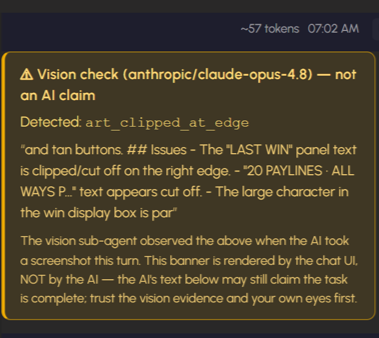
When the vision sub-agent's reading contradicts the main model's account, the panel renders a banner above the reply:
⚠ Vision check — the vision sub-agent observed the above when the AI took this screenshot.
This banner is drawn by the chat UI, not written by the AI. When the banner and the prose below it disagree, the banner is the one that looked.
If you never see these banners and expect to, check that a Vision Model is selected in settings.
Generated images
Anything the AI creates — key art, textures, UI assets — goes through a separate flow with its own approval step. See Image, Video & Audio.