Pre-Prompt Rules
The XGENIA AI Agents is in early alpha. Panels and settings change often.
Pre-Prompt Rules are standing instructions the AI reads at the start of every conversation. Write a preference once instead of repeating it in each message.
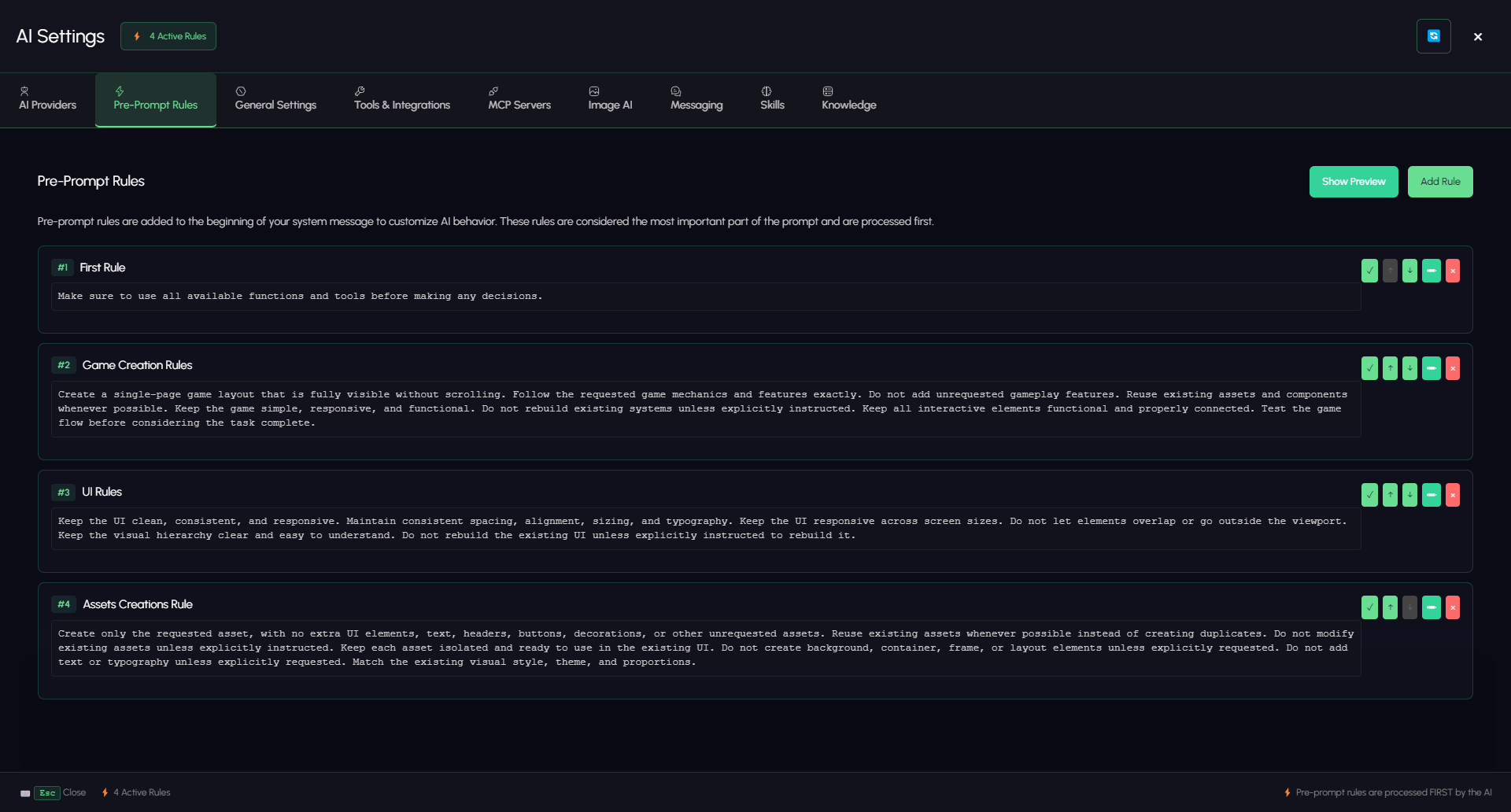
Open the Provider & Tools gear to bring up AI Settings, then the Pre-Prompt Rules tab.
How they work
Active rules are prepended to the system message, ahead of everything else — so they are the first thing the model reads and the instructions it weighs most heavily. The AI Settings footer states it directly: pre-prompt rules are processed FIRST by the AI. They apply to every conversation until you turn them off, and the count of active rules is badged at the top of the settings window.
The rule list
Each rule is a numbered card — #1, #2, #3 — edited in place. The number is its order, and order is priority: #1 is read first.
| Control | What it does |
|---|---|
| Name | The heading this rule gets in the system prompt. Make it descriptive: UI Rules, Assets Creation Rule. |
| Text area | The instruction itself, edited inline on the card. |
| ✓ | Toggles the rule active or inactive without deleting it. |
| ↑ / ↓ | Moves the rule up or down the order. |
| × | Deletes the rule. |
Add Rule creates a new card. Show Preview renders the exact block that will be prepended — active rules only, in order.
Press Esc to close AI Settings.
Rules that work well
Rules earn their place when they describe a standard, not a task.
Name: Design language
Every screen uses the dark palette: #0f0f12 background,
#e6e6ff text, #67DE92 for primary actions. Corner radius 8px.
Never use pure black or pure white.
Name: Naming convention
Name nodes in PascalCase describing their role, e.g. LoginCard,
SubmitButton, EmailInput. Never leave a node on its default name.
Name: Verify before reporting
After any change that affects the UI, take a screenshot and check
it before telling me the work is done.
Name: Ask first
If a request could reasonably mean two different things,
ask me before building rather than guessing.
Rules that will not work
Some content is rejected automatically because it would break the assistant's ability to work on your project at all. A rule is silently skipped if it tries to:
- stop the AI from using its tools (
never use tools,skip tools,ignore tools,avoid calling) - push it toward generic web output instead of XGENIA nodes (
generic html,generic css,use bootstrap,use tailwind)
If a rule never seems to take effect, check whether it contains one of these. Rewrite it as a positive instruction about the result you want rather than a ban on how the AI works.
Tips
- Keep each rule to one idea. Easier to disable the one that is getting in the way.
- Turn rules off rather than deleting them. The toggle exists for exactly this.
- Rules are not memory. For things the AI figures out about your project by itself, see Skills & Knowledge.
- Fewer is better. A long stack of rules crowds out the actual request.