Getting Started
The XGENIA AI Agents is in early alpha. Panels and settings change often.
This guide takes you from a fresh editor to your first AI-built screen. Budget about five minutes.
Before you start
- A XGENIA Pro account, signed in.
- An OpenRouter account — free to create at openrouter.ai.
- A project open in the editor.
Step 1 — Open the Chat panel
Click Chat in the editor's left sidebar. The AI panel docks beside your canvas.
If you see an upgrade prompt instead, your account is not on Pro yet. If you see a sign-in form, sign in with your XGENIA account.
Step 2 — Add your OpenRouter API key
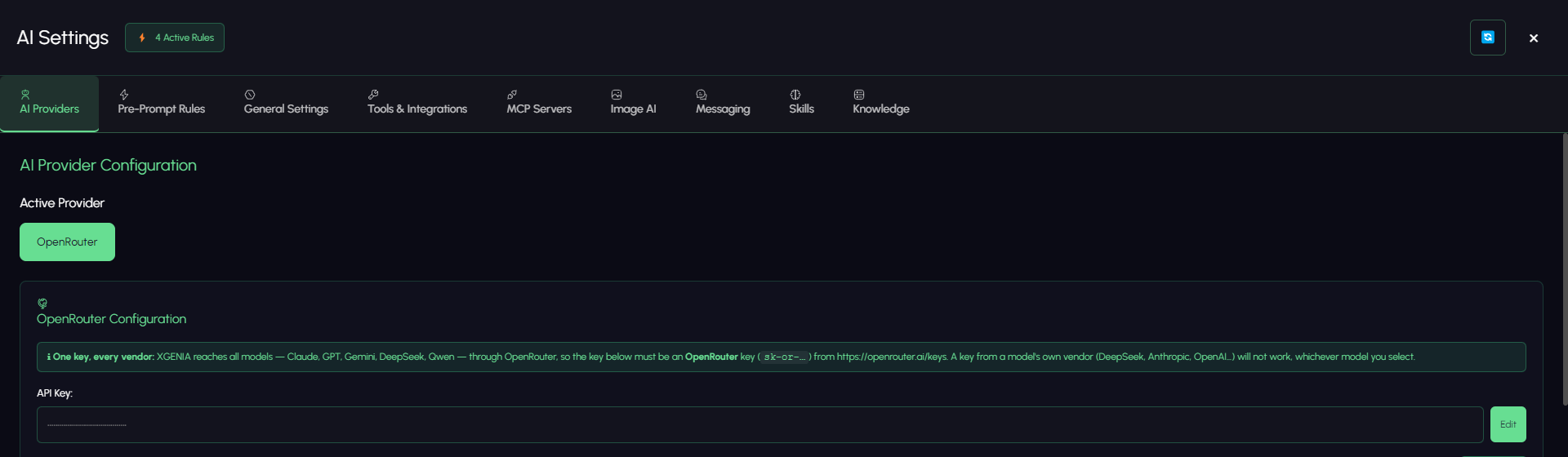
Hover over the top of the panel to reveal the header controls, then click the Provider & Tools gear icon. The settings panel opens on the AI Providers tab.
- Create a key at openrouter.ai/keys.
- Paste it into the API Key field. It must start with
sk-or-. - Click Test & Save. The panel verifies the key and then loads the model list.
XGENIA reaches all models — Claude, GPT, Gemini, DeepSeek, Qwen — through OpenRouter. The key must be an OpenRouter key (sk-or-…). A key issued by a model's own vendor (Anthropic, OpenAI, DeepSeek…) will not work, whichever model you pick.
You can top up credit on your OpenRouter account; usage for every request is billed there, and the panel shows your remaining balance in the context bar.
Step 3 — Pick a model
Still on the AI Providers tab, search the model list and click the model you want to use as your main model.
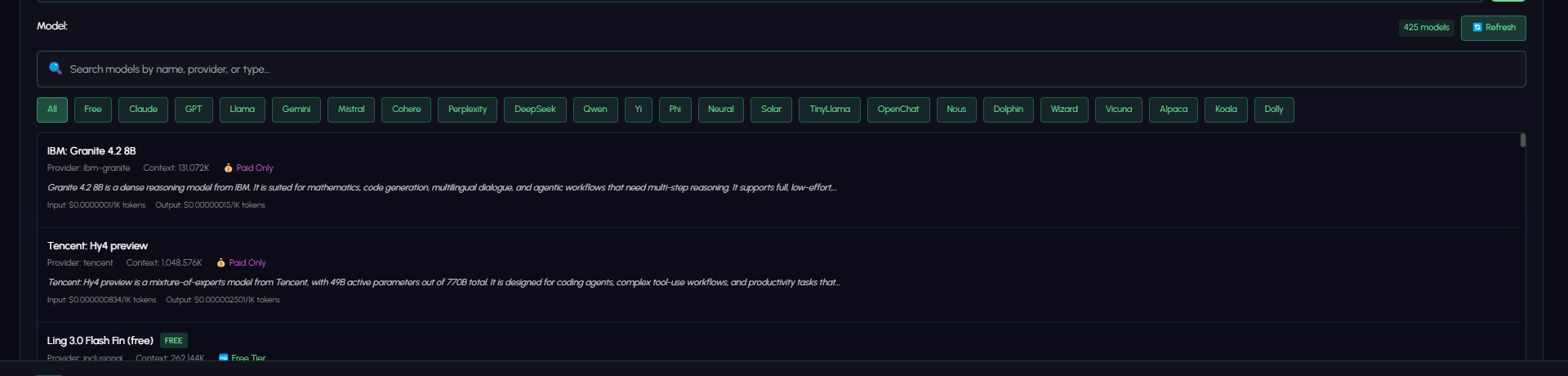
If you are unsure, start with a strong reasoning model such as Claude Opus or Claude Sonnet — building in XGENIA involves long tool-calling sessions, and weaker models lose track. See Models & Providers for the full picture, including the specialised vision and UI specialist sub-agents.
Close the settings panel. The model you chose now shows at the bottom-left of the chat, with a green dot when the key is configured.
Step 3b — Add the media and font keys (optional but usually wanted)
Still in AI Settings, switch to Tools & Integrations.
- Fal.ai — required for any image, video, or audio the AI generates. Paste the key, click Test & Save, look for ✓ Verified.
- Google Fonts — optional. Without a key the AI picks from 40 curated fonts; with one, from the top 100.
Neither is needed to start a conversation, but the Fal.ai key is needed the first time you ask for art — and it is easier to set now than to debug later. See Tools & Integrations.
Step 4 — Ask for something
Type into the input box and press Enter.
Create a new component called Login with a centered card: an email
input, a password input, and a Sign In button. Style it dark.
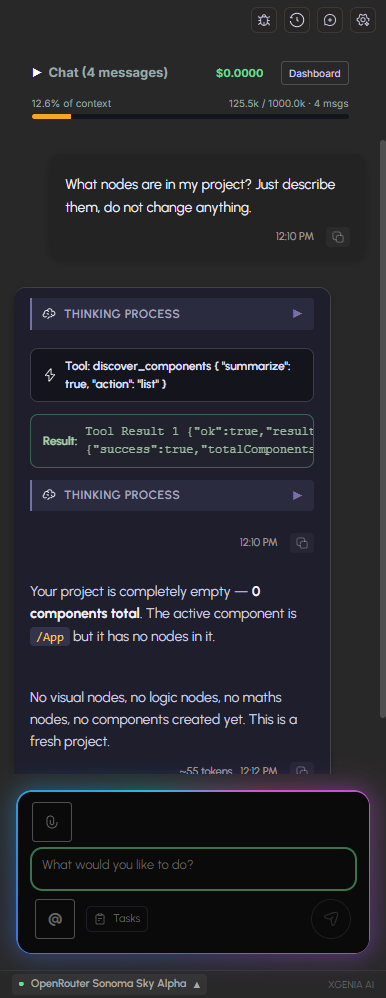
Watch what happens:
- Small step bubbles appear as the AI reads your project and calls tools. Click one to expand it.
- The Tasks button (bottom-left of the input) opens the AI's task plan for the job.
- Nodes appear on your canvas as they are created.
- When it finishes, it usually reports what it built and how it verified it.
Step 5 — Iterate
Follow-up messages keep the same context. Be specific about what to change:
The Sign In button is too small. Make it full width and 44px tall,
and disable it until both fields have text.
Useful habits:
- Point at nodes with
@. Type@in the input and pick a node from the dropdown — the AI then knows exactly which node you mean. - Show, don't describe. Paste or drag a screenshot into the input when something looks wrong. See Images & Vision.
- Start a new conversation for a new task. The New Conversation icon in the header keeps context clean and costs down.
Step 6 — Set your standing rules (optional)
If you always want the AI to work a certain way — a design language, a naming convention, a framework rule — write it once as a Pre-Prompt Rule instead of repeating it. See Pre-Prompt Rules.
Troubleshooting
| Symptom | Fix |
|---|---|
| Red dot next to the model name | No verified API key. Re-open AI Providers and save your key. |
| "This does not look like an OpenRouter key" | You pasted a vendor key. Get one from openrouter.ai/keys. |
| Upgrade prompt instead of chat | AI Agents requires XGENIA Pro. |
| The model list is empty | The key has not been verified yet — click Test & Save. |
| Replies stop mid-build | You may have hit the model's context limit. Watch the context bar, and start a new conversation for the next task. |
| The AI edits the wrong component | Tell it which component to switch to, or @-mention a node inside the right one. |