The Chat Panel
The XGENIA AI Agents is in early alpha. Panels and controls change often.
Every control in the AI panel, top to bottom.
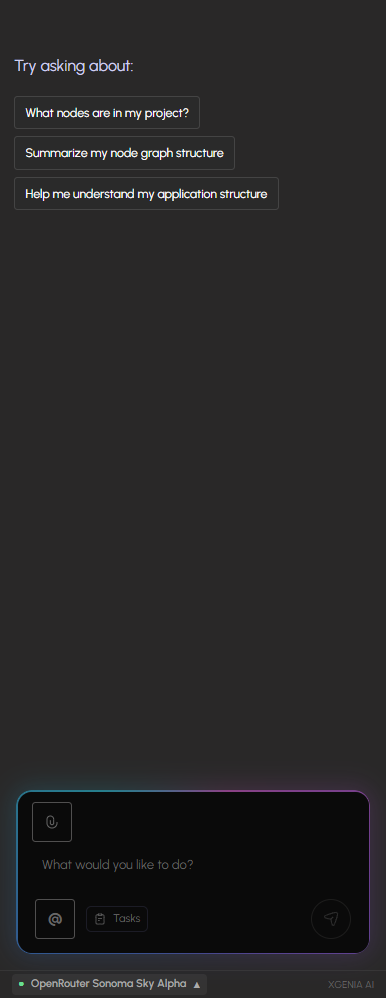
The empty state
A fresh conversation offers three read-only suggestion chips — What nodes are in my project?, Summarize my node graph structure, Help me understand my application structure. They are a quick way to confirm the AI is actually reading your live project before you ask it to change anything.
Header controls
The header icons stay hidden until you hover over the panel, so they do not compete with the conversation.

| Icon | Name | What it does |
|---|---|---|
| 🐞 | Debug Export | Dumps the current conversation, tool calls, and state to a file. Attach this when reporting a problem. |
| 💬 | Chat History | Opens the list of saved conversations. The badge shows how many you have. |
| ➕ | New Conversation | Starts a clean conversation. The old one stays in history. |
| ⚙️ | Provider & Tools | Opens the AI Settings window — nine tabs: AI Providers, Pre-Prompt Rules, General Settings, Tools & Integrations, MCP Servers, Image AI, Messaging, Skills, Knowledge. Its header badges how many pre-prompt rules are active; Esc closes it. |
Long-press the gear to reveal the Debug Tools menu, including the Tool Testing Panel — a developer view where you can invoke any AI tool by hand.
The context bar
The context bar appears once a conversation starts. Click it to expand.

Collapsed it reads, left to right: the conversation and its message count (Chat (4 messages)), the running cost in dollars, and a Dashboard toggle. Under it sits the context gauge — 12.6% of context on the left, 125.5k / 1000.0k · 4 msgs on the right, with a bar that fills as the conversation grows.
Watch that bar on a long build. When it approaches full, start a new conversation rather than pushing on.
Expanded, the bar adds a breakdown:
| Reading | Meaning |
|---|---|
| Context segments | The same window split into Input, Output, and Cache |
| Pricing (input / output) | Price per token for the active model |
| Tokenizer | The tokenizer the model uses for counting |
| Credits | Remaining balance and usage on your OpenRouter key |
| Dashboard | A fuller breakdown of token and cost usage |
The message area
Your messages appear as plain bubbles with a timestamp and a copy button.
Assistant replies are built from a few kinds of block.
THINKING PROCESS — a collapsible block holding what the AI actually did: each tool call with its arguments (Tool: discover_components { "summarize": true, "action": "list" }) and the raw result underneath. Collapsed by default. Expand it whenever you want to check what happened rather than what the AI says happened — this is the single most useful control in the panel.
A reply can contain several of these blocks, interleaved with prose, plus a token count and timestamp at the end.
Node links — node IDs in a reply render as green chips. Click one to focus that node on the canvas.
Assistant messages can also carry a vision banner — a warning rendered by the panel (not written by the model) when a vision sub-agent looked at a screenshot and disagreed with what the AI reported. Trust the banner over the prose.
Approvals
Two kinds of work do not apply silently. Neither of them blocks the build — that is the thing to understand about both.
Code approval
When the AI wants to run a script against your project, it posts a card instead of running it.
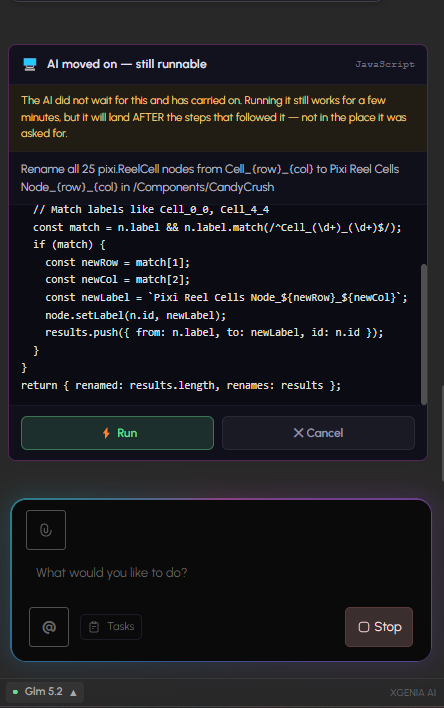
The card carries a language badge (JavaScript), a plain-language line saying what the script will do — "Rename all 25 pixi.ReelCell nodes from Cell_(row)(col) to Pixi Reel Cells Node(row)_(col) in /Components/CandyCrush" — and the actual code, scrollable. Then ⚡ Run and ✕ Cancel.
The AI does not sit and wait for you. It releases the request and carries on with the rest of the build. The card's title tells you which state you are in:
| Title | What it means |
|---|---|
| Code Execution Request | Fresh. The AI is still on this step. |
| AI moved on — still runnable | The AI released it and carried on. Running it still works, but it will land after the steps that followed — not in the place it was asked for. |
| Too old to run | More than about three minutes since it was released. Run is disabled and reads ⚡ Run (expired). Ask the AI to do it again. |
| Running… / Execution Complete / Cancelled | Self-explanatory. |
The amber banner spells the middle state out rather than making you infer it from a timestamp:
The AI did not wait for this and has carried on. Running it still works for a few minutes, but it will land AFTER the steps that followed it — not in the place it was asked for.
Once it goes stale, the banner changes to say how many minutes ago the AI stopped waiting and that the project has changed since.
What this means in practice: an approval you leave for five minutes is not an approval you can still grant. If a card appears, deal with it now or expect to ask for the work again. When the editor is in the background you get a desktop notification — "A script needs your OK before it can run. The AI has carried on with everything else." — and expired requests are excluded from its count, so it never announces nine scripts when eight of them are dead.
Media approval
Generated key art arrives as a card showing the image, the prompt that made it, and three buttons: ✓ Approve, ✎ Request changes, ✕ Reject. This one is on a two-minute timer — the build keeps running, and if nobody answers the image is auto-approved as the project style anchor. See Image, Video & Audio.
The two gates fail in opposite directions, which is worth remembering: ignore a code approval and nothing happens (it expires). Ignore a media approval and it happens anyway (it auto-approves).
The input box
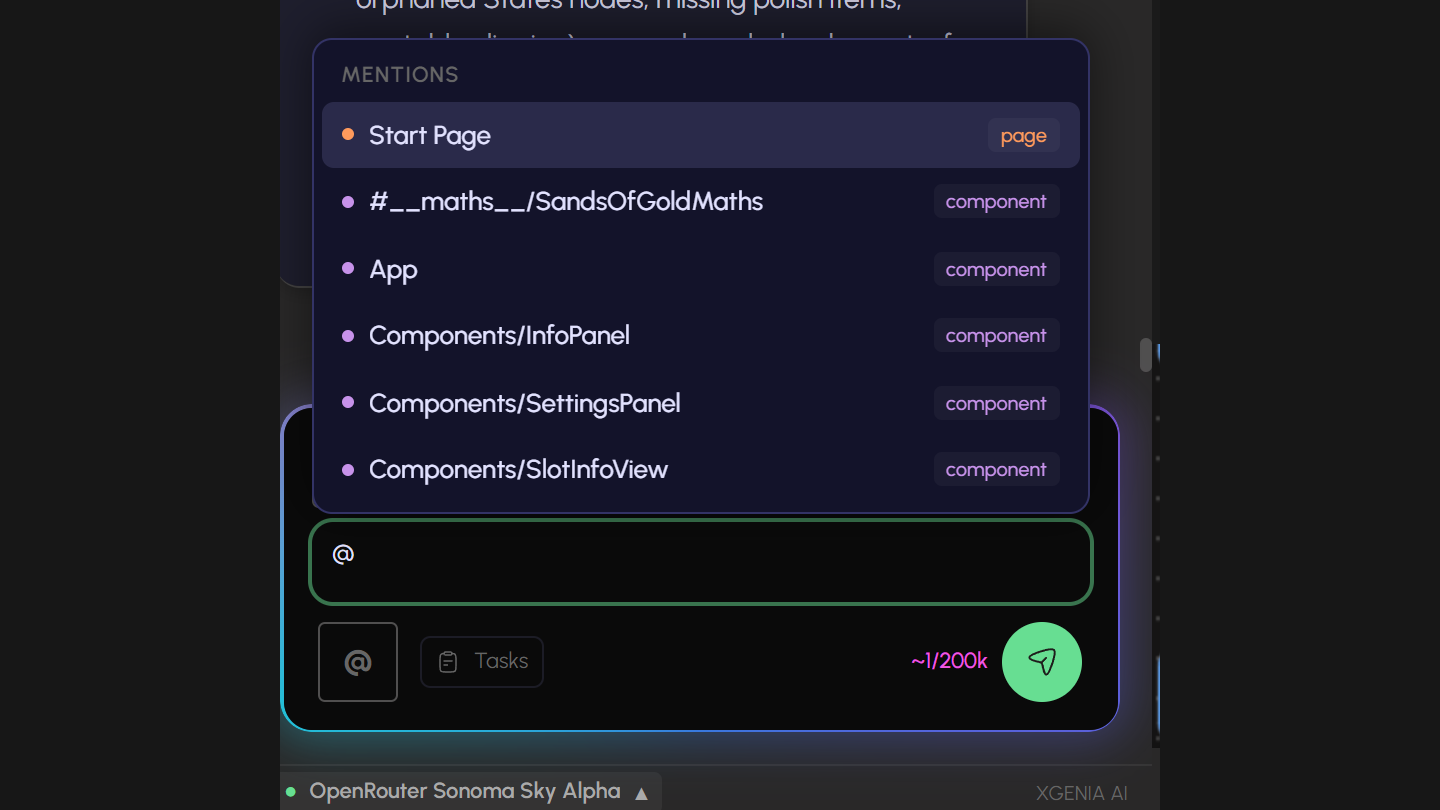
| Control | What it does |
|---|---|
| 📎 Attach | Attach one or more images. You can also drag and drop or paste images and text straight into the box. Thumbnails appear above the input with an × to remove each one, and Clear all to drop them. |
| @ (mention) | Type @, or click the button, to open the node picker. Selecting a node inserts a chip the AI can resolve exactly — no guessing which "Button" you meant. Click a chip later to jump to that node. |
| Tasks | Opens the AI Task Plan panel. |
| Token counter | While you type, a rough estimate of your message size against the model's limit. |
| Stop | Cancels the operation in flight. Replaces Send while the AI is working. |
| Send | Sends the message. Enter also sends. |
The Tasks panel
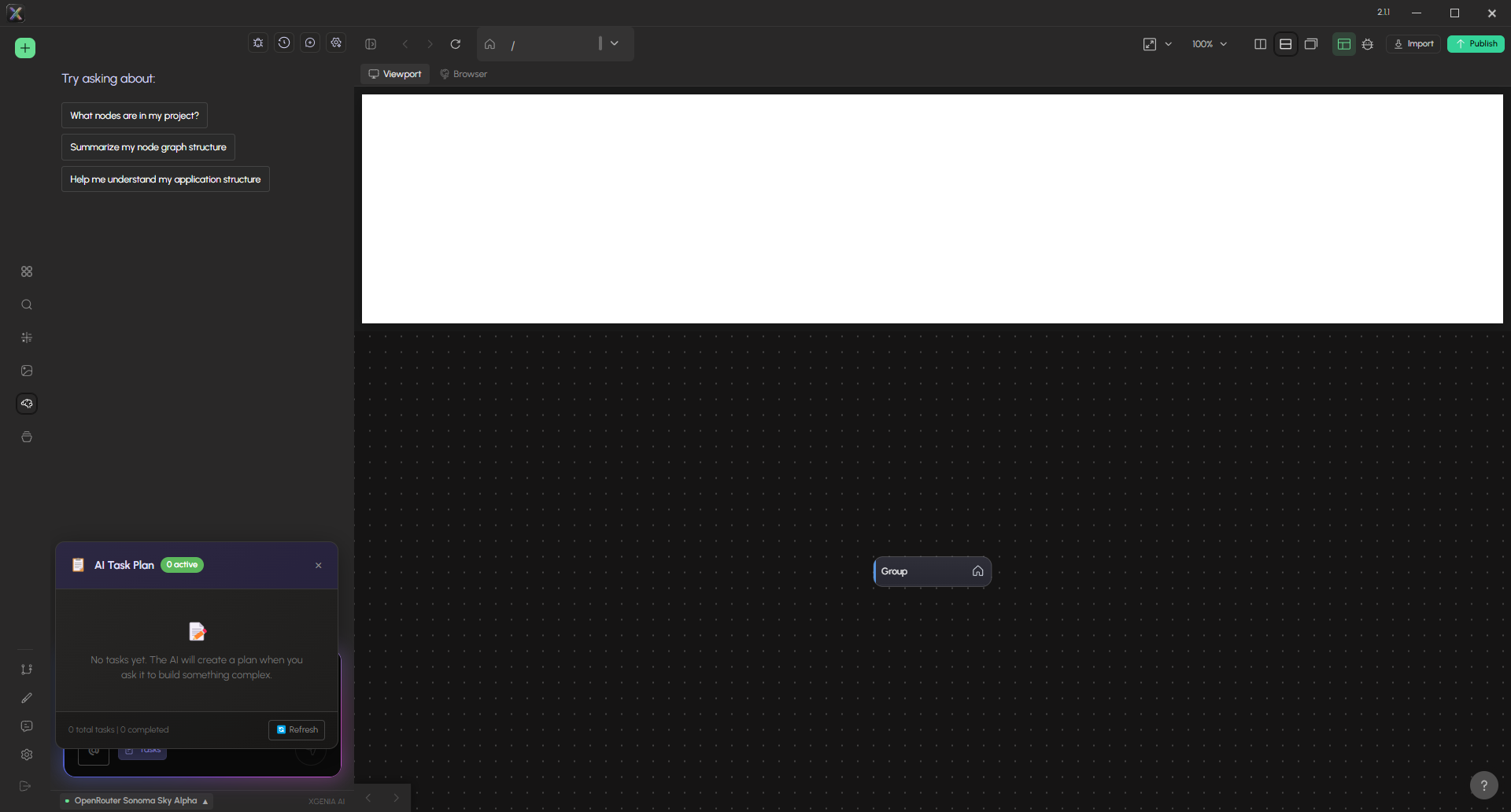
For anything beyond a one-liner, the AI writes a task list before it starts and updates it as it goes. Open it with the Tasks button. The header carries an N active badge, and the footer a total tasks | completed count with a Refresh button. On a project where nothing complex has been asked for yet it says so plainly — the AI creates a plan when you ask it to build something complex.
The panel refreshes live and marks each item:
| Status | Meaning |
|---|---|
| ⏳ Pending | Queued, not started |
| 🔄 In progress | Being worked on now |
| ✅ Completed | Done and verified |
| ❌ Cancelled | Dropped, usually because the plan changed |
This is the fastest way to see whether a long build is still on track.
The model bar
At the very bottom sits the active model.
- The label reads provider plus model, e.g.
OpenRouter Sonoma Sky Alpha. - A green dot means your API key is configured and verified; red means it is not.
- Click the name for a quick menu of your recent models, each with its full model id — switch mid-conversation without opening settings.
- View All Models… opens the full picker.
See Models & Providers.
Chat history
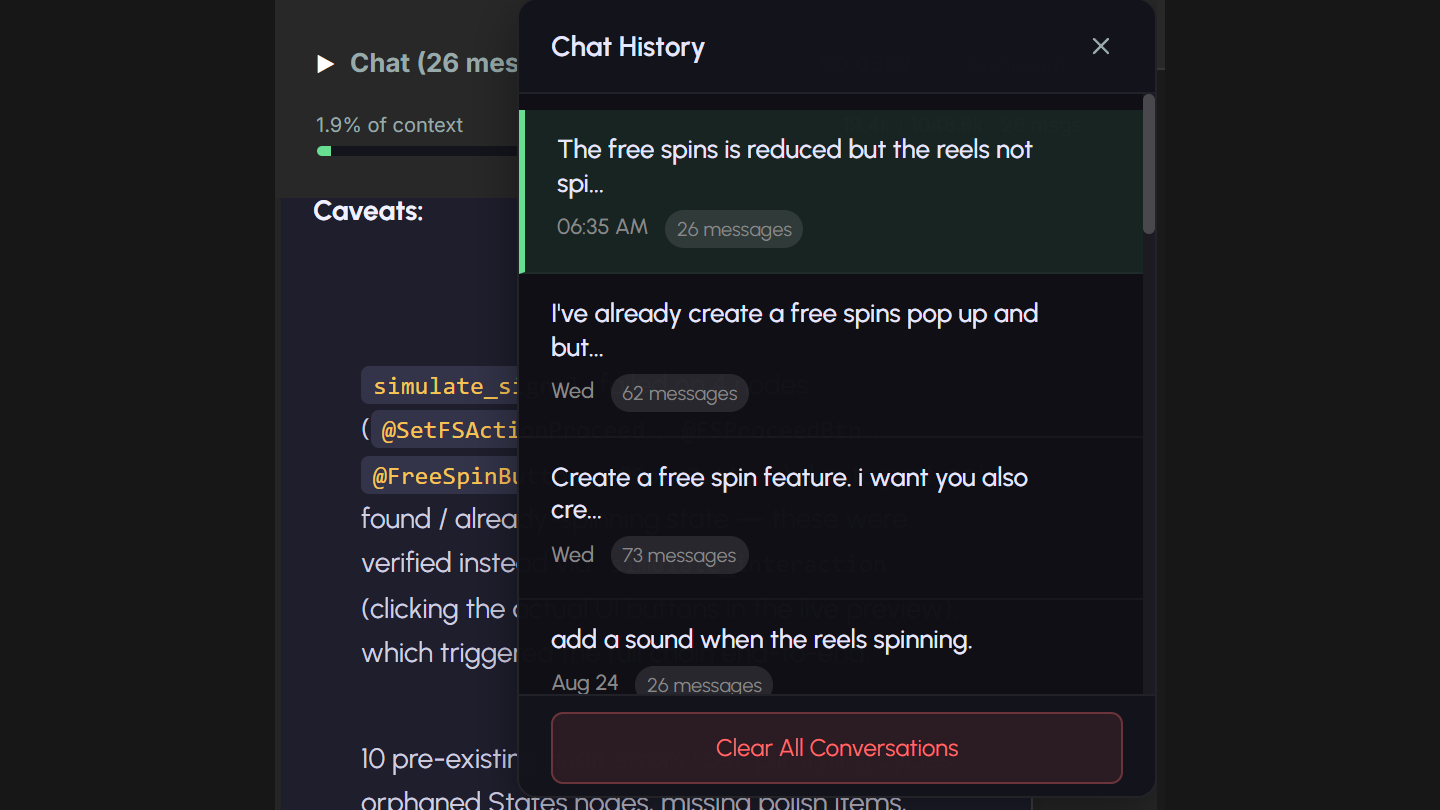
Conversations are saved automatically as you send messages. Open the history panel from the header to reopen an earlier one, and use New Conversation when you switch tasks — a fresh conversation costs less and keeps the AI focused.