Model Hub
The AI Image Editor is in early alpha. The model catalogue changes often.
Click the model chip in the prompt bar to open the Model Hub.
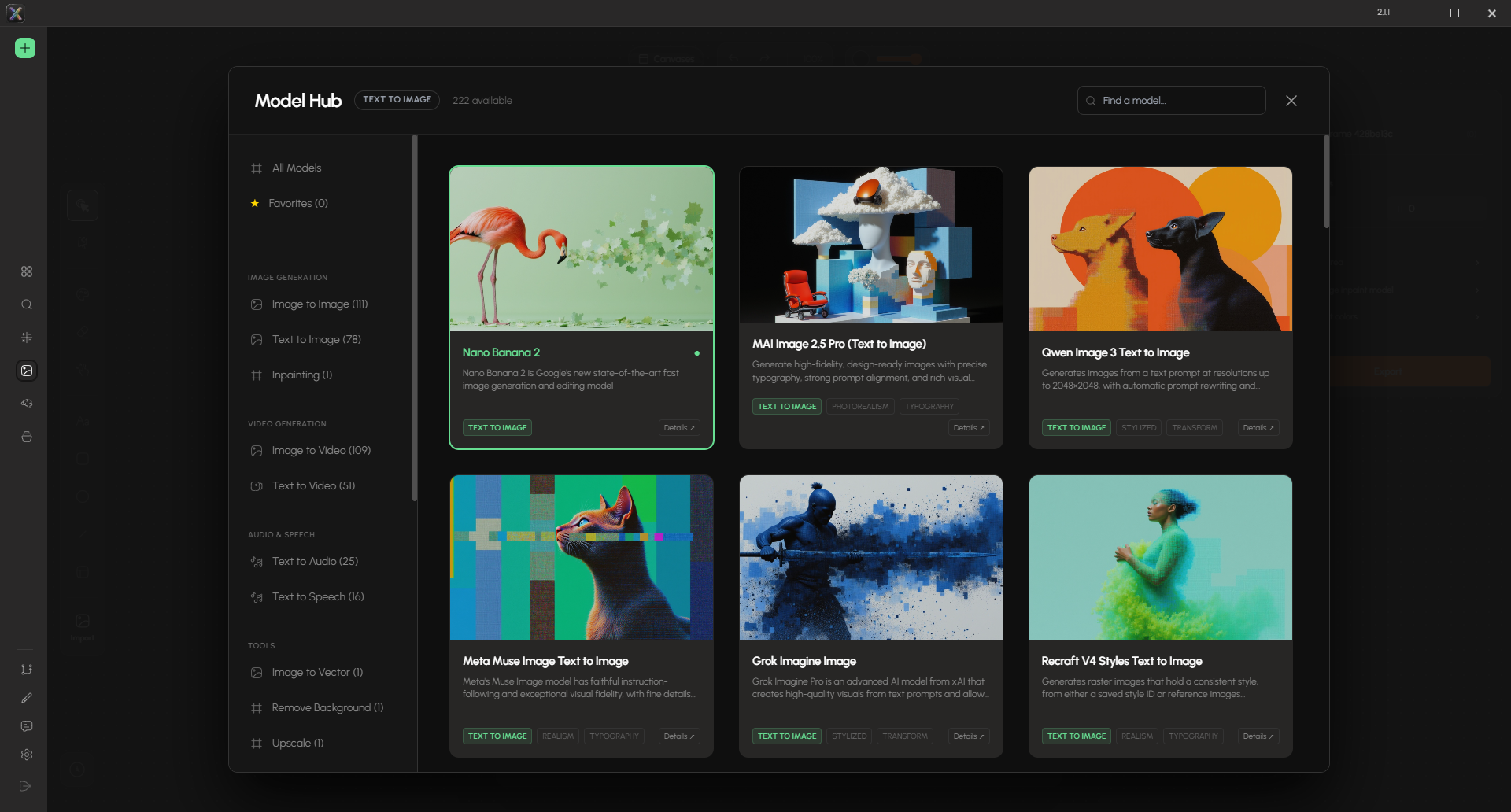
Several hundred models are available, and the header counts how many match your current filter. Search with Find a model…, or browse the categories on the left.
Categories
| Group | Category | Roughly |
|---|---|---|
| Image generation | Image to Image | The largest group — transform an image you already have |
| Text to Image | Generate from a description | |
| Inpainting | Fill a masked region | |
| Video generation | Image to Video | Animate a still |
| Text to Video | Generate a clip from a description | |
| Audio & speech | Text to Audio | Music and sound effects |
| Text to Speech | Voice | |
| Tools | Image to Vector | Raster to vector |
| Remove Background | Cut out the subject | |
| Upscale | Increase resolution |
Yes — the Image Editor generates video and audio too, not only stills. The prompt bar is the same; the model decides what comes out.
Favorites collects the models you star, so the handful you actually use are one click away instead of buried in hundreds.
Reading a model card
Each card carries a sample image, the model name, a one-line description, and capability badges — TEXT TO IMAGE, PHOTOREALISM, TYPOGRAPHY, STYLIZED, TRANSFORM, REALISM and others. A green dot marks the active model. Details opens the model's own documentation.
The badges are the fastest filter in practice. If your asset is a logo with text on it, a model without TYPOGRAPHY will fight you no matter how carefully you prompt.
Choosing well
| You want | Look for |
|---|---|
| Icons, sprites, UI assets | A model that can produce transparent backgrounds |
| Text rendered correctly in the image | TYPOGRAPHY |
| Photographic output | PHOTOREALISM or REALISM |
| A consistent house style across many assets | A style-reference model — one that accepts a saved style or reference image |
| Editing an existing image | The Image to Image category, not Text to Image |
Set the inpainting model separately under Change inpaint model — see Editing & Layers.