Generating Images
The AI Image Editor is in early alpha. Models and settings change often.
Everything about generation lives in the bar along the bottom of the canvas.
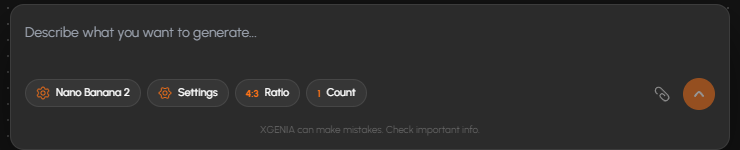
The prompt bar
Type into Describe what you want to generate… and submit with the arrow on the right. Around it sit four controls:
| Control | What it does |
|---|---|
| Model chip | The active model — click to open the Model Hub |
| Settings | Aspect ratio, web search, generation limits |
| Ratio | A quick aspect-ratio picker |
| Count | How many variations to generate per prompt |
| Attach media | Attach a reference image to the prompt |
The footer under the bar says the quiet part out loud: XGENIA can make mistakes. Check important info.
Aspect ratio

The Ratio chip opens a visual picker — each option drawn as the shape it produces, so you pick a frame rather than parse a number.
Available ratios: Auto, and then landscape through portrait — 21:9, 16:9, 3:2, 4:3, 14:10, 5:4, 1:1, 4:5, 10:14, 3:4, 2:3, 9:16, plus the extremes 4:1, 1:4, 8:1, 1:8, 2:1, 1:2.
Auto lets the model choose. Use it when you do not care; pick explicitly when the asset has to drop into a fixed slot.
The same list appears under ASPECT RATIO in Model Settings.
Count
Generate several variations in one go. Higher counts cost proportionally more but save you re-prompting — when you are still finding the look, generate four and pick; when you know what you want, generate one.
Model Settings
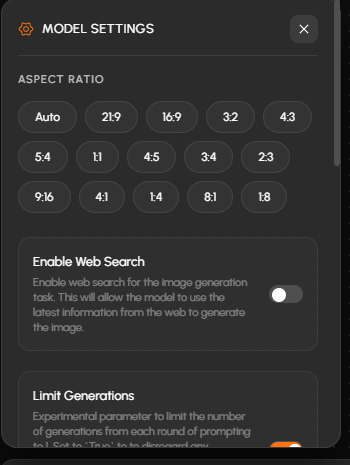
The Settings chip opens MODEL SETTINGS:
| Setting | What it does |
|---|---|
| Aspect Ratio | The full ratio list, same as the Ratio chip |
| Enable Web Search | Lets the model pull current information from the web while generating. Off by default. |
| Limit Generations | Experimental. Caps each round of prompting to one generation, discarding the rest. |
Web search is worth enabling when the subject is something the model may not know — a recent product, a specific real place — and worth leaving off otherwise, since it adds latency for no benefit on imaginary subjects.
Writing prompts that work here
The same discipline as anywhere else, with one addition specific to a canvas tool: you are not stuck with words. If the composition is wrong, block it out roughly with the shape tools and generate over it, or mask the part that is wrong and inpaint only that. Describing a fix is slower than drawing it.
Where the result goes
Generated images land on the canvas as layers. From there you keep editing, or hit Export.