Editing in the viewport
The preview has two modes. In Preview mode the app behaves exactly as it will for players. In Edit mode the preview becomes a design surface: click an element to select its node, drag it to move it, pull its handles to resize it.
Switch modes with the pencil icon in the top bar, or press Ctrl+T (⌘T on Mac). The icon is highlighted while you are in Edit mode.
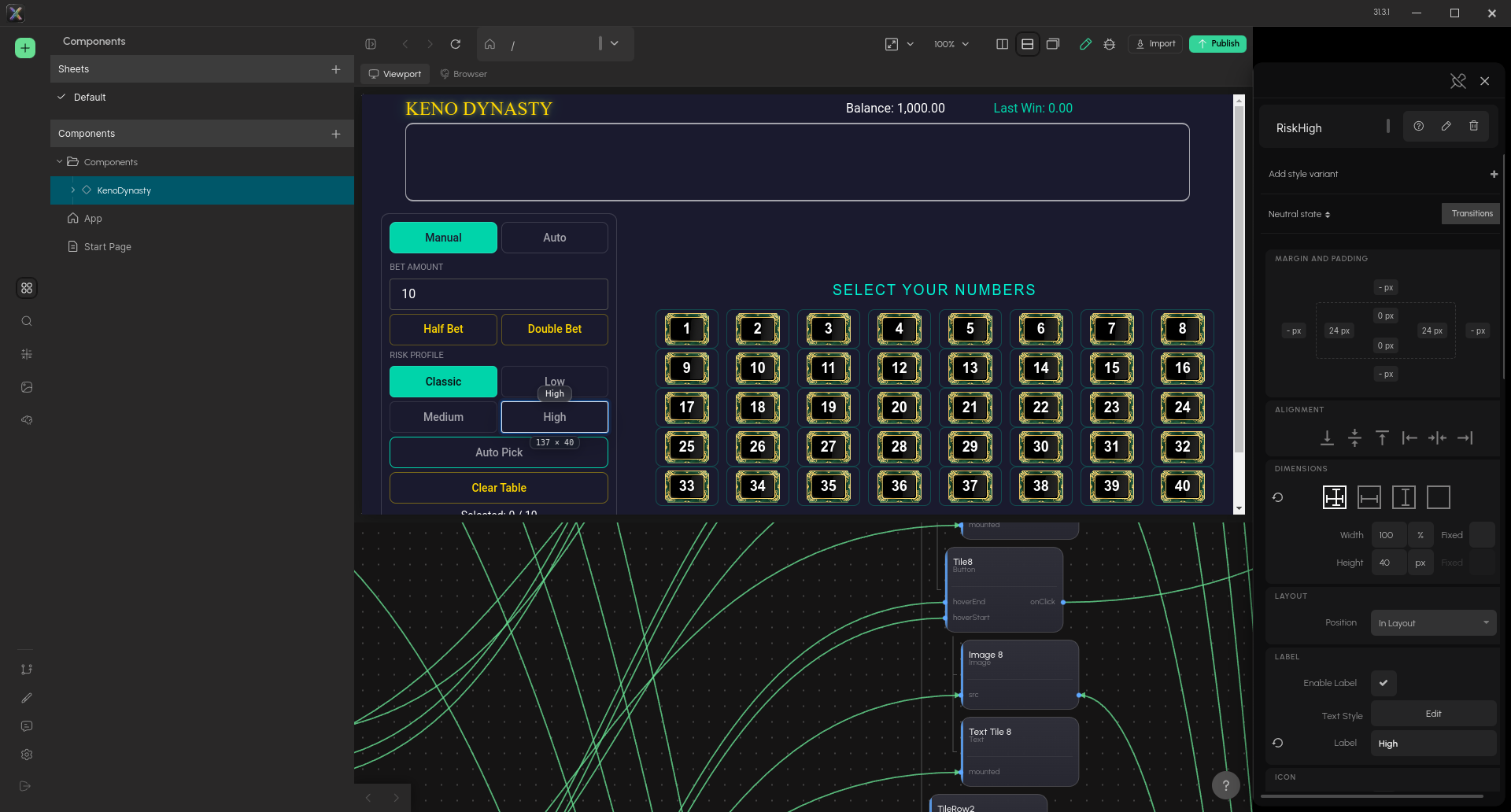
Edit mode. The High button is selected in the preview; the graph and the Properties panel follow.
Selecting
Click an element. It gets a selection frame, a name badge above it (the node's label, or its id when it has none) and a size badge below it with its width and height in pixels. At the same time the node is selected in the graph and its Properties panel opens, so the preview, the graph and the properties always point at the same node.
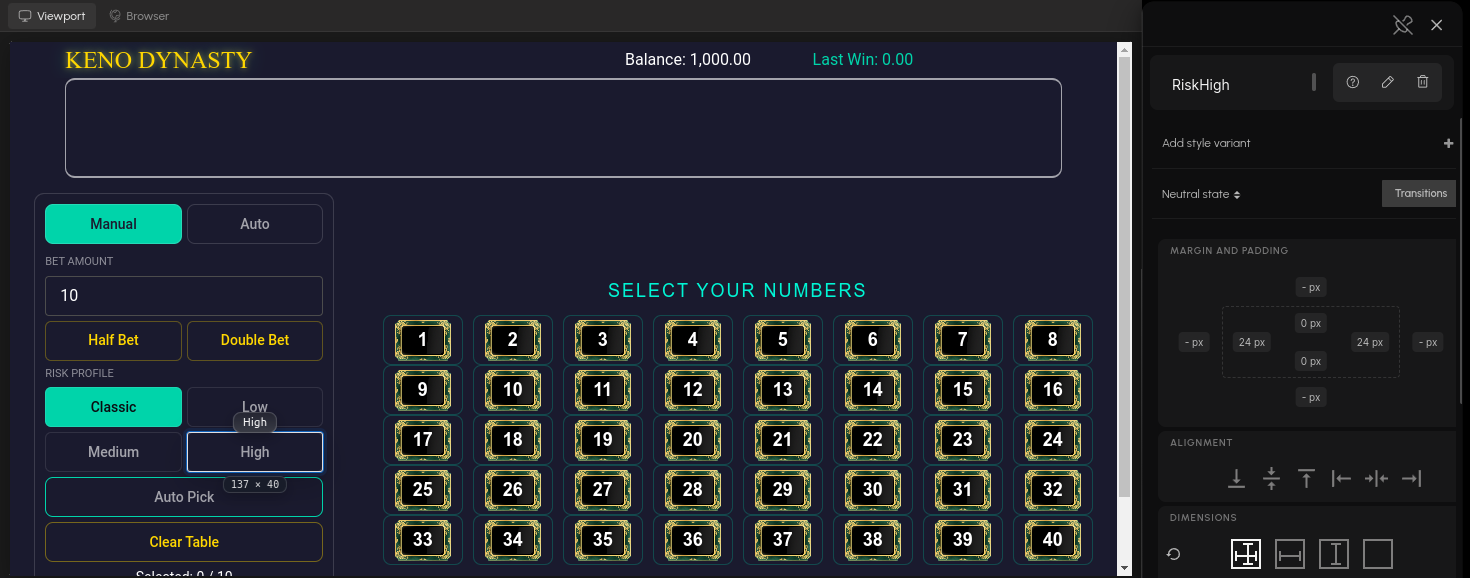
Click somewhere else to select another element. Clicks in Edit mode never reach the app, so buttons in your game will not fire while you design.
Moving, resizing, rotating
| Gesture | Result |
|---|---|
| Drag inside the frame | Moves the element. Its position properties are updated when you let go. |
| Drag with Shift held | Constrains the move to one axis. |
| Drag one of the axis arrows on the frame | Moves along that axis only. |
| Drag an edge or corner handle | Resizes. Width and height are written to the node; if its size was content-driven, the size mode switches to explicit for the axis you dragged. |
| Drag the rotation handle above the frame | Rotates the element. |
Every gesture writes ordinary node properties, the same ones you see in the Properties panel, and every gesture is one undo step (Ctrl+Z). If a property uses percentages, the edit keeps percentages: the value is converted against the parent's size so what you see is what gets stored.
When nothing moves
Some elements cannot be dragged, because their position is not theirs to decide. Instead of guessing, the editor tells you why in the name badge:
| Message | Meaning |
|---|---|
| Managed by layout — reorder coming soon | The element is In Layout: its parent group positions it. Change its Position to Absolute in Properties, or move it in the graph. |
| Offset uses % — set a px value first | Its offset is in percent and there is no parent box to convert against. |
| Size is content-driven on this node | The node sizes itself to its content; set an explicit size first. |
| Inside a transformed container | A parent is rotated or scaled, so screen movement cannot be mapped to properties. |
| Rotated — resize not supported yet | Resize a rotated element from the Properties panel. |
Talking to the AI about an element
Double-click an element to hand it to the AI assistant: a reference to that node is inserted into the Chat panel's input, so you can follow it with an instruction — "make this bigger and gold". See AI Agents.
Zooming the preview
In Edit mode, Ctrl + mouse wheel zooms the preview canvas, and Ctrl+=, Ctrl+- and Ctrl+0 zoom in, out and back to 100%. Switching back to Preview mode resets the zoom.
Games on a Pixi stage
Elements drawn on a Pixi Stage get the same treatment: click to select, drag to move, axis arrows and Shift snapping. Their positions are plain pixel numbers, which is what the stage expects.