Editor Tour
A quick orientation of the XGENIA editor, from the project launcher to the panels you will use every day. The launcher, editor, rail and top bar screenshots are from XGENIA 3.0.
The launcher
XGENIA opens on your Games. The game you worked on last is the large Continue card at the top — Open, Resume chat to pick up its AI conversation, Reveal folder, and Pin to keep it there. Below it, every game as a card with its art, name, description, when you last opened it and how many chat messages it has, grouped into Pinned, Today, Yesterday, This week and Earlier.
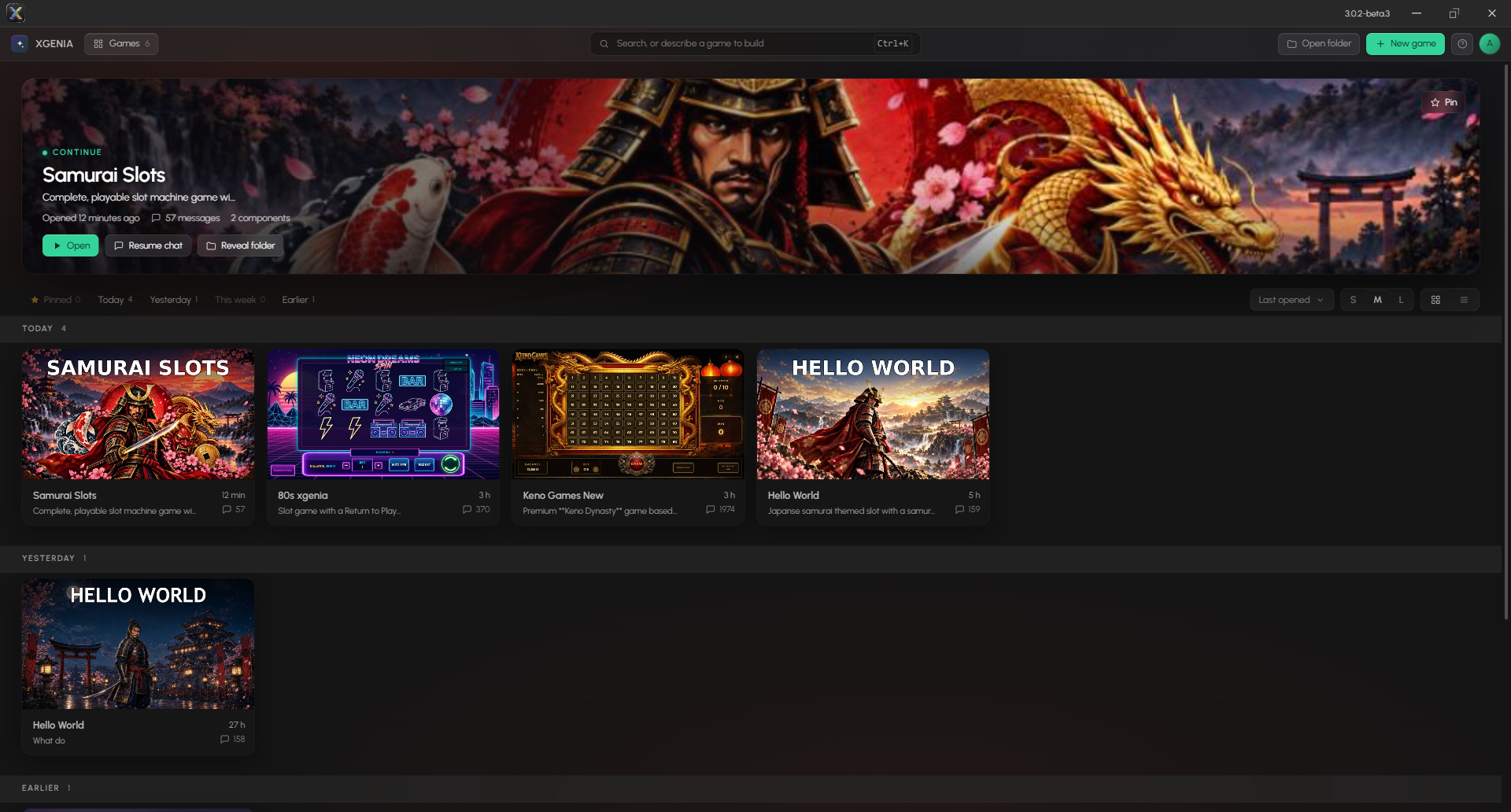
The launcher. Along the top: Games, the Search, or describe a game to build box (Ctrl+K), Open folder, New game, help, and your account. On the right of the list, change the order, the card size (S, M, L) and grid or list view.
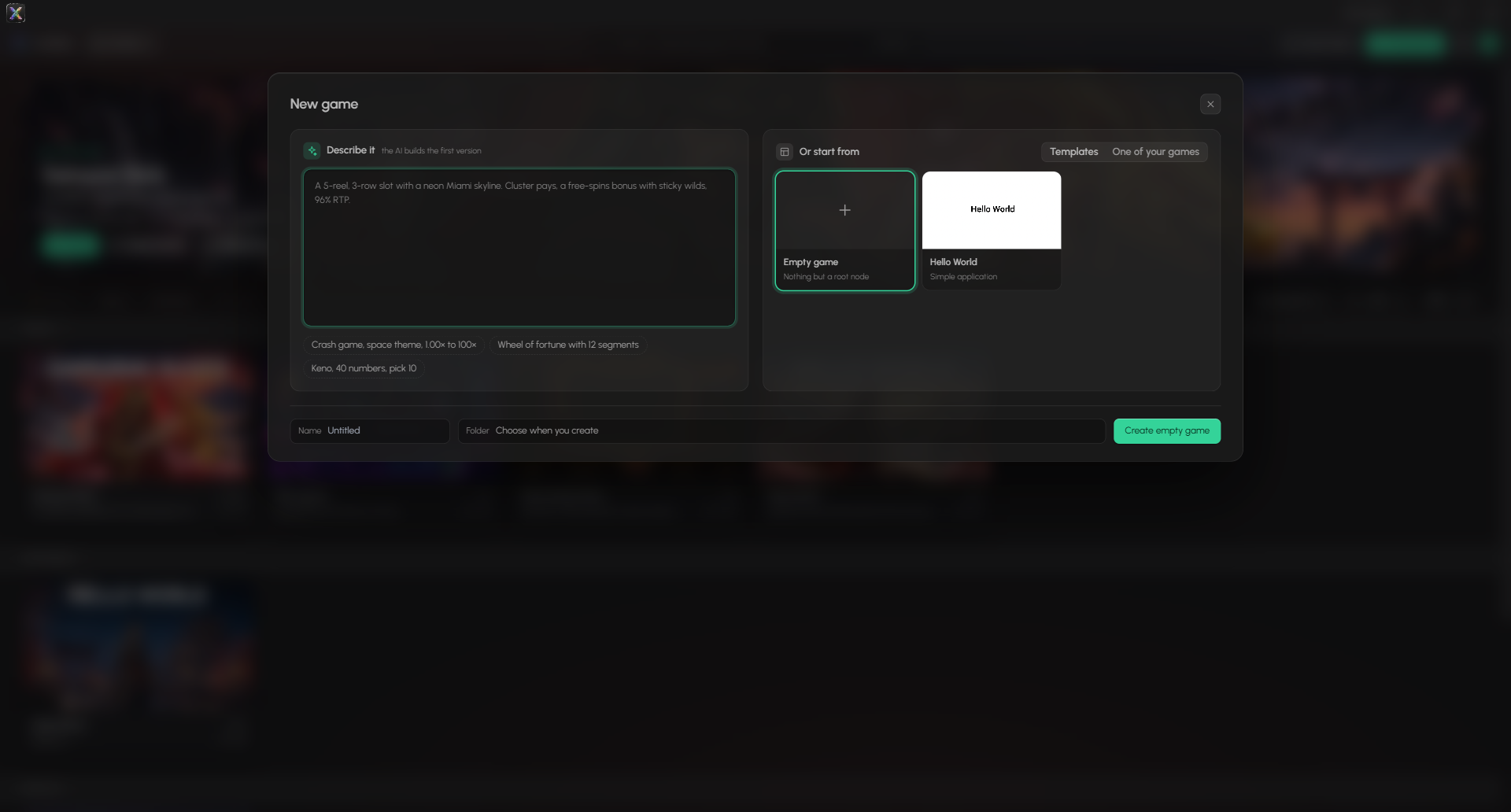
New game puts both ways to start side by side:
| Side | What it does |
|---|---|
| Describe it — the AI builds the first version | Type what the game is, and the button changes to Start with AI. See the AI Workflow. |
| Or start from | The Hello World template, or One of your games, to start from a copy. |
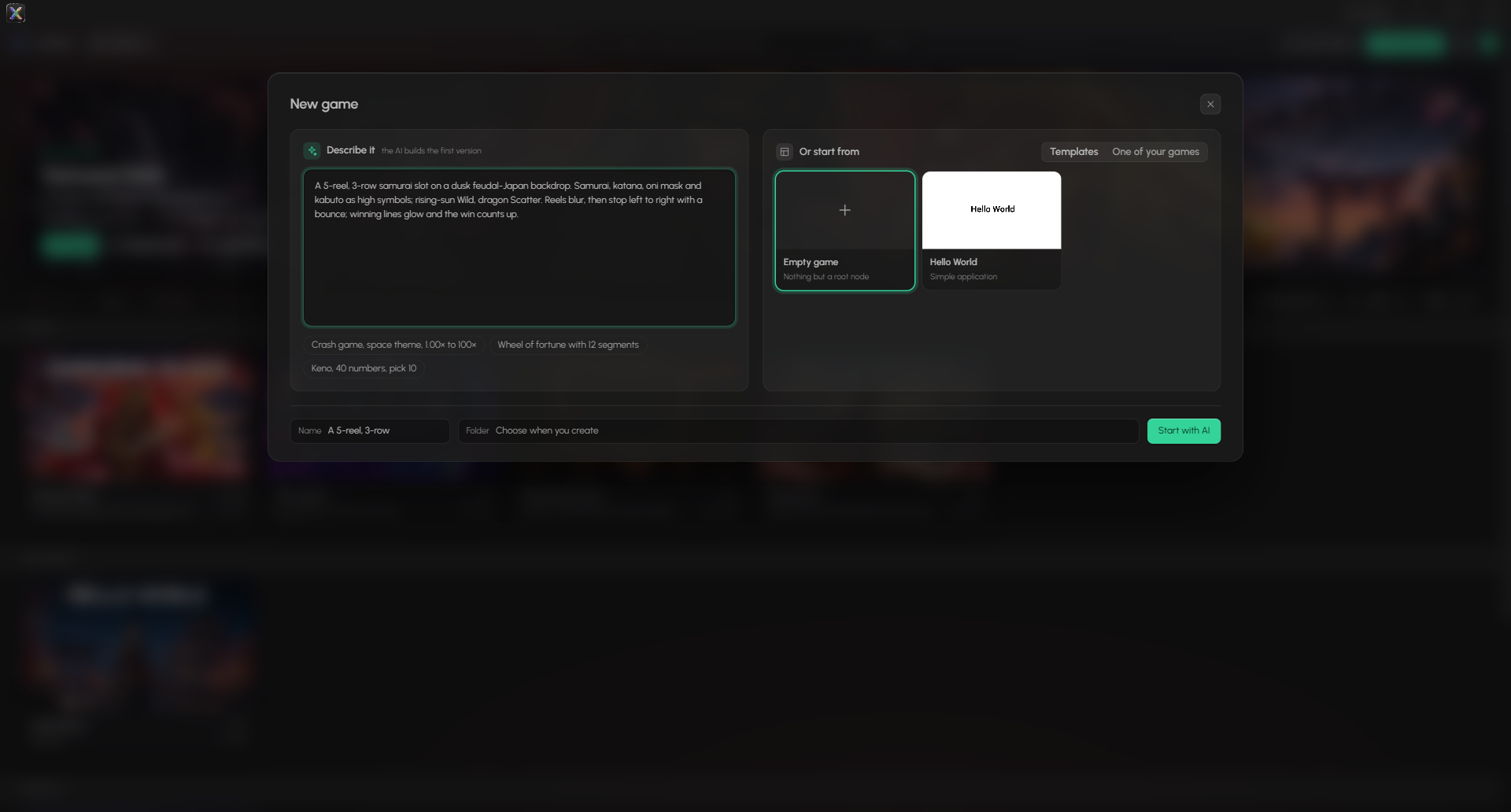
With a description typed, the name is filled in from it and the button reads Start with AI.
The four areas
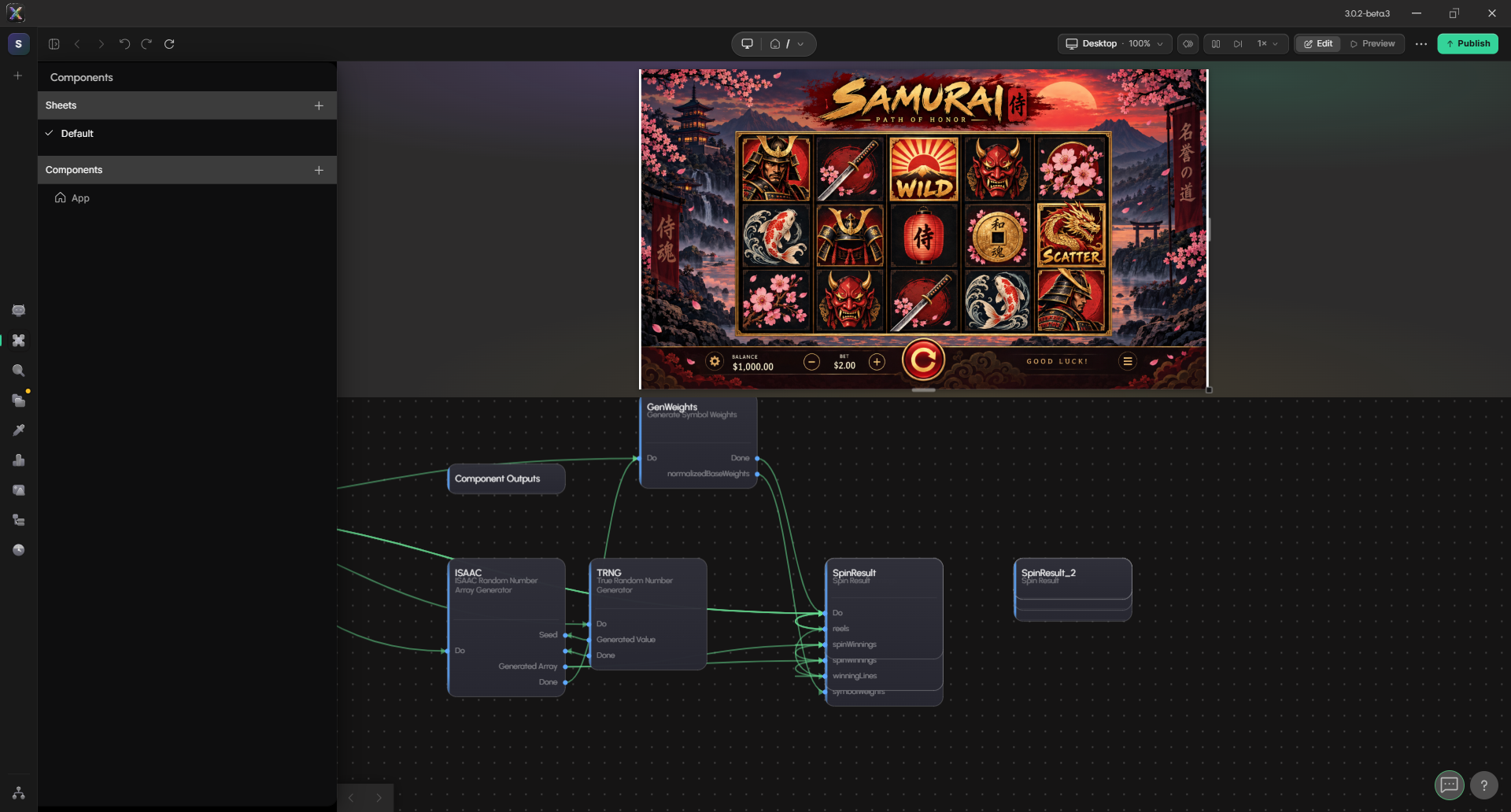
A project open in the editor: the sidebar rail and Components panel on the left, the live preview on top, the node graph below.
- Sidebar rail (far left) — icons that open panels: Chat, Components, Search, Assets, Project Styles, Maths RGS, AI Image Editor, Hierarchy and History, and at the bottom Version control. Editor panels describes every one.
- Panel — the open panel docks next to the rail. Here it is Components: the project's sheets and component tree.
- Preview — your running app, live as you edit. It has two modes, Edit and Preview.
- Node graph — the nodes of the component you are editing. Double-click a component node to open what is inside it. Some features open a document of their own here instead of the graph, such as a deployed maths component or a simulation.
Drag the divider between the preview and the graph to change how much room each gets.
The rail

From top to bottom: the project badge (its initial — click it for the project), then + to add a node; then Chat, Components, Search, Assets, Project Styles, Maths RGS, AI Image Editor, Hierarchy and History; and at the very bottom Version control. Hover any icon for its name and keyboard shortcut — AI Image Editor is Ctrl+Alt+7, for example.
The top bar

| Control | What it does |
|---|---|
| Panel toggle | Collapses or shows the sidebar panel. |
| ‹ › | Go back and forward in the preview. |
| ↶ ↷ | Undo and redo. |
| ↻ | Refresh the preview. |
| Screen and route | In the middle: the screen icon, and the route the preview is showing. Use the dropdown to jump to another page. |
| Desktop · 100% | The device the preview is sized for, and its zoom. |
| Timeline, pause, step | Open the timeline, pause the game, and step it one frame at a time. |
| 1× | Game speed, safe area and states. |
| Edit / Preview | Switches the preview between Edit mode and Preview mode (Ctrl+T). |
| ⋯ | More options. |
| Publish | Publishes the project. See Publishing a game. |
Adding nodes
Press + at the top of the rail, or the + in the graph header, to open the node picker. Search by name, or browse: your own Project components first, then UI Elements, controls, logic, data and so on. Click a node to add it to the graph.
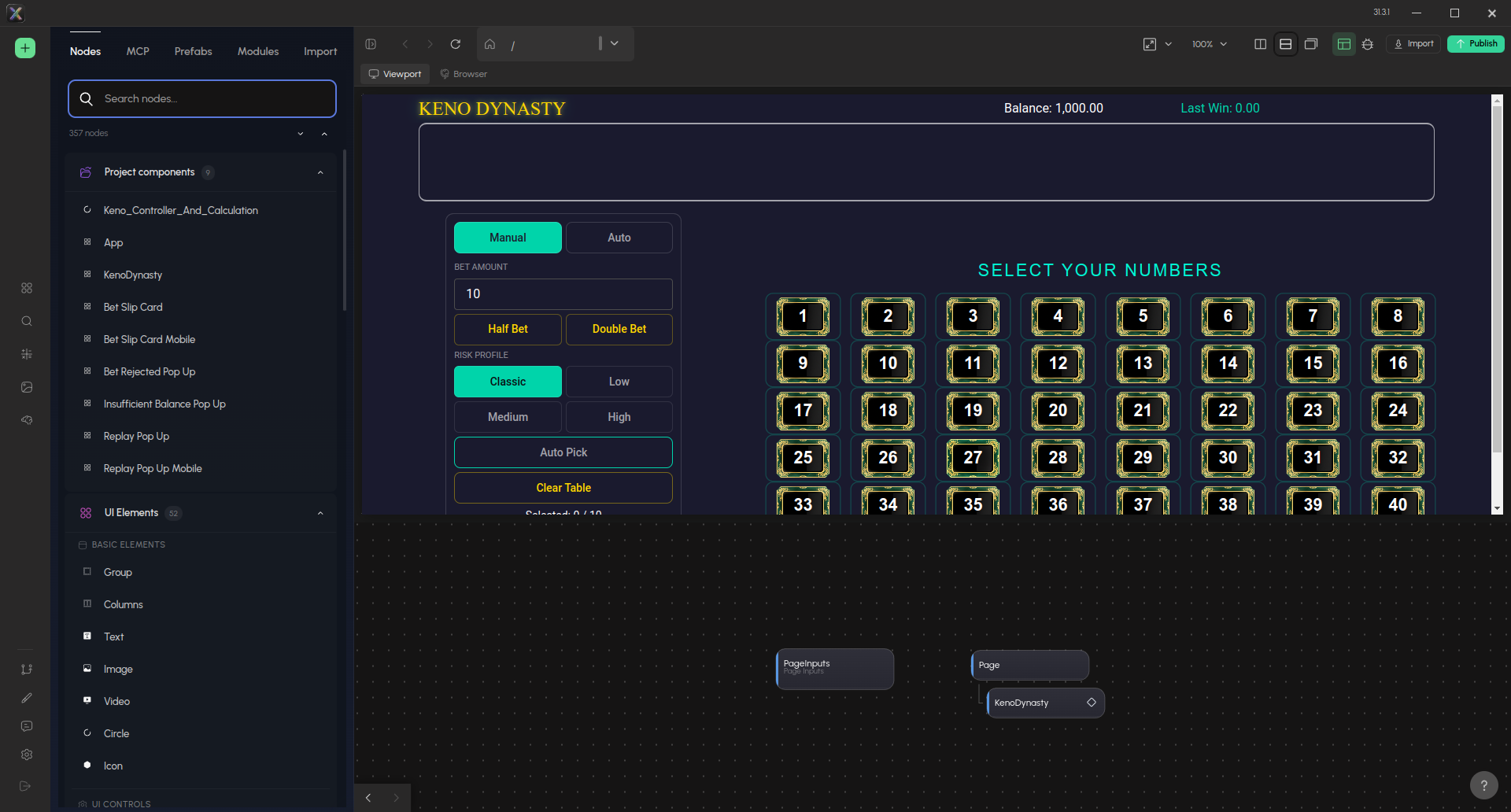
The picker's other tabs give you MCP tools, Prefabs, Modules and Import.
Properties
Select a node in the graph, or an element in the preview while in Edit mode, and its Properties panel opens on the right. Drag its left edge to resize it; double-click the edge to reset.
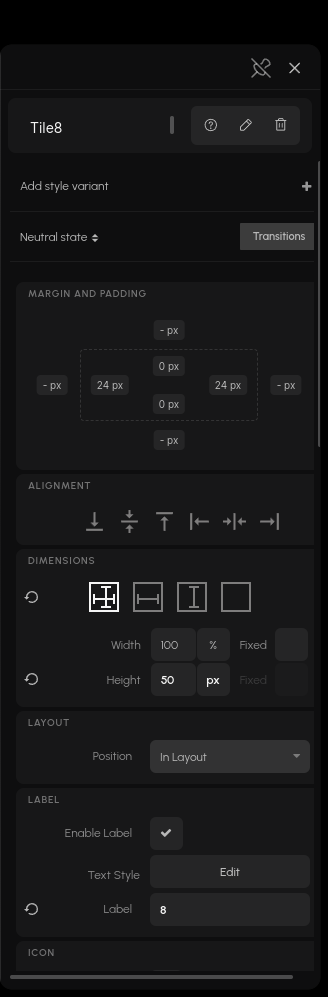
The Properties panel for a Button: style variant and visual state at the top, then the property groups. Script under General is the node's own code, which you can edit — see Editing a node's Script.
Edit mode and Preview mode
The preview has two modes, switched with the pencil icon in the top bar or Ctrl+T:
- Edit mode — click an element to select its node; the Properties panel follows. Drag to move it, use the handles to resize, and rotate with the handle above the frame. Double-click an element to hand it to the AI chat as a reference.
- Preview mode — the app behaves exactly as it will for players. Clicks go to the app.
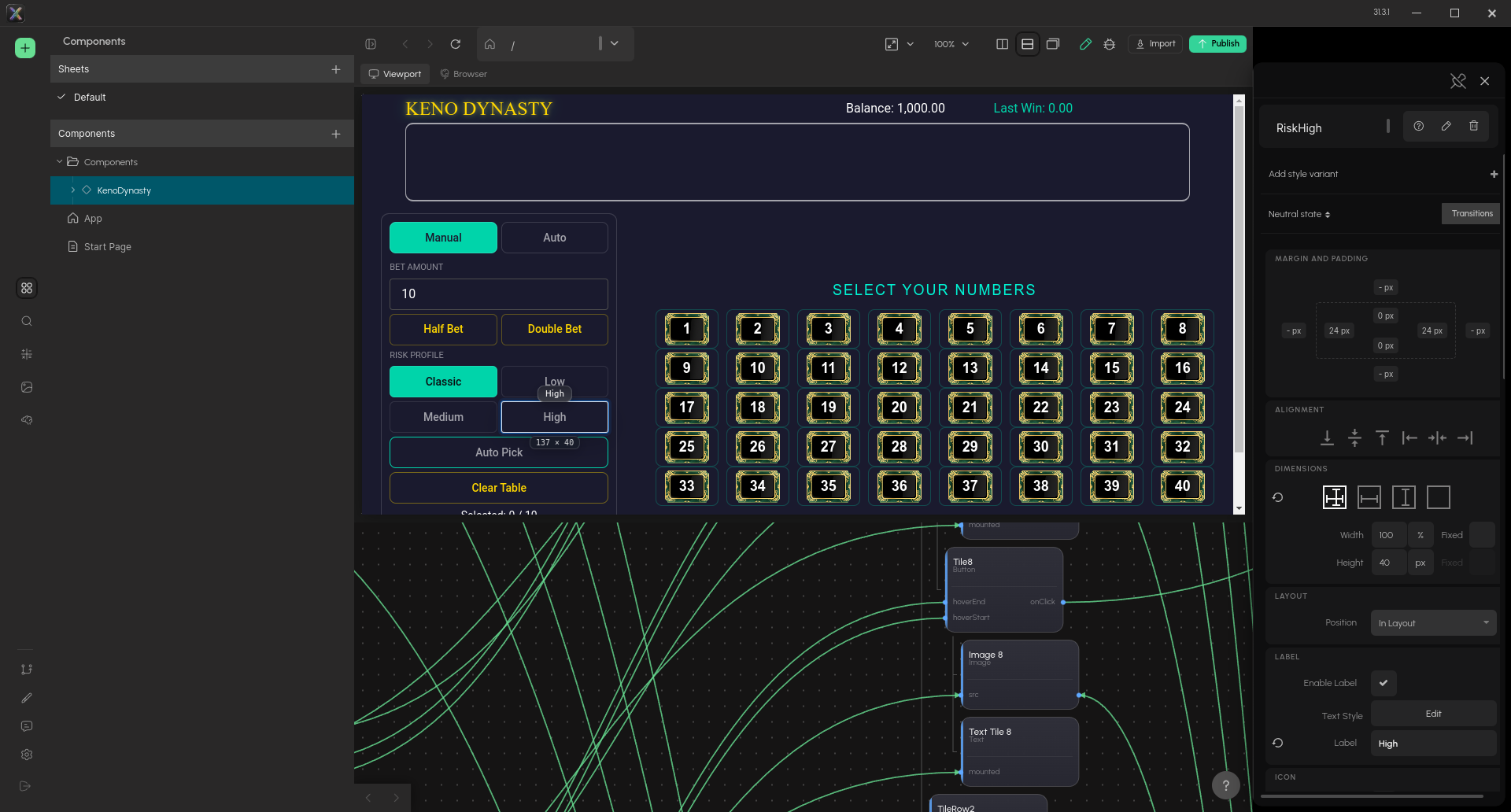
Edit mode. The selected element gets a frame with a name badge and its size; the Properties panel on the right shows the same node.
Editing in the viewport covers everything Edit mode can do.
A good first session
Open a template project, find a Text node in the graph, change its text in Properties, and watch the preview update instantly. Then read Fundamentals for the concepts behind it.
Video tour
This video is from a deprecated commercial version of XGENIA and includes some features not present in the open source version, notably workspaces, the component canvas and built-in Git hosting.