Using Supabase Edge Functions

What you will learn in this guide
In this guide, you will learn how to use Supabase Edge Functions with XGENIA, including setting up credentials, importing/exporting functions, and deploying serverless functions to Supabase.
Overview
Supabase Edge Functions are serverless functions that run on Supabase's infrastructure. This guide covers:
- Setting up Edge Functions credentials
- Importing functions from Supabase to XGENIA
- Exporting XGENIA cloud functions to Supabase
- Managing and deploying Edge Functions
Prerequisites
Before starting this guide, make sure you have:
- A Supabase project set up (see Setting Up Supabase Service)
- Basic understanding of XGENIA cloud functions
- A Supabase Personal Access Token
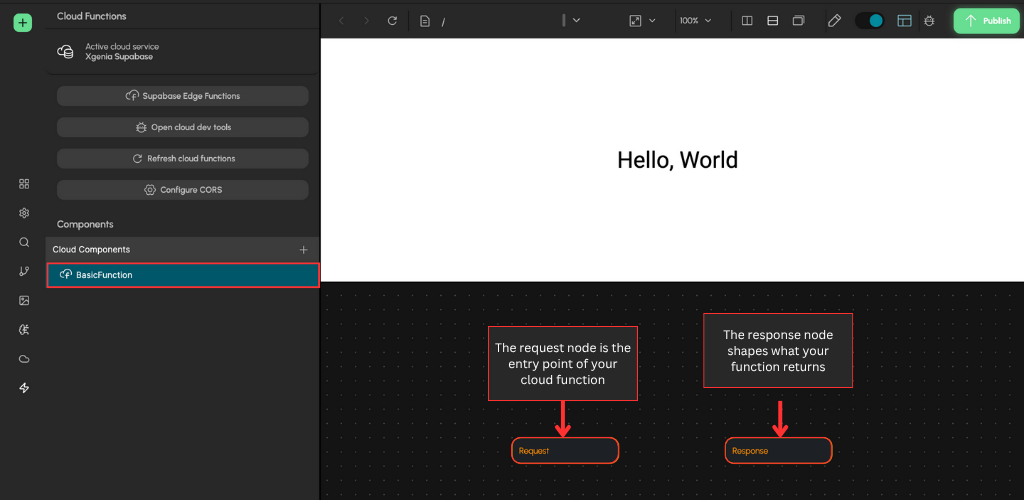
Quick overview of cloud function components and how they work
Request Node
- The Request node is the entry point of your cloud function.
- It reads a JSON body from the HTTP request. Each key in the JSON maps to an input parameter on the node.
- Example body:
{ "userId": "123", "limit": 10 }→ inputsuserId,limit. - Parameters are optional; missing keys become undefined.
- Example body:
Authentication (Boolean)
- When Authentication is ON:
- The function expects a Supabase JWT in the
Authorization: Bearer <token>header. - The token is verified; requests without a valid token are rejected.
- On success, the authenticated user context is available to your logic.
- The function expects a Supabase JWT in the
- When Authentication is OFF:
- Anonymous requests are allowed; no token is required.
- Use this for public endpoints or non-sensitive operations.
Tip: Turn auth ON for endpoints that read/write user data; leave it OFF for simple, public utilities.
Response Node
- The Response node shapes what your function returns.
- Whatever you connect to its inputs becomes the JSON response.
- If you pass a single value, it becomes the response body.
- If you pass multiple values, they’re returned as an object with keys matching your port names.
- On success: returns status 200 with
Content-Type: application/jsonand CORS headers. - On error: returns status 400 with
{ "error": "<message>" }and CORS headers.
Quick Example
- Request node:
{ "a": 2, "b": 3 } - Request node provides
a,bto your logic. - Your logic outputs
sum = 5to the Response node. - Response:
{ "sum": 5 }(200 OK)
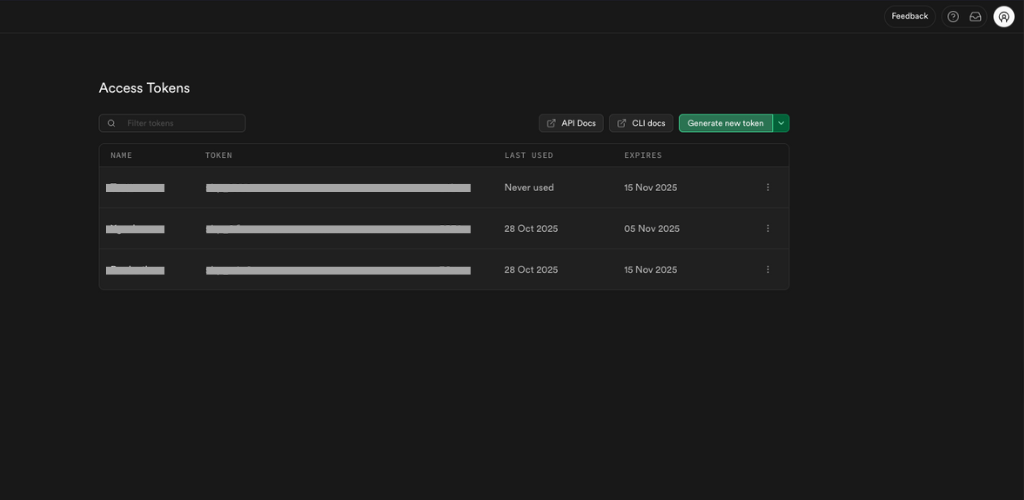
1. Getting Your Supabase Personal Access Token
To use Edge Functions with XGENIA, you'll need a Personal Access Token (PAT) from Supabase.
-
Navigate to Account Settings
- Go to https://app.supabase.com/account/tokens
- Sign in to your Supabase account
-
Create New Token
- Click "Generate new token"
- Enter a descriptive name (e.g., "XGENIA Edge Functions")
- Set the appropriate permissions:
- Edge Functions: Read and Write
- Projects: Read (to access project information)
- Click "Generate token"
-
Save Your Token
- Important: Copy the token immediately (starts with
sbp_...) - Store it securely - you won't be able to see it again
- This token allows XGENIA to manage your Edge Functions
- Important: Copy the token immediately (starts with
2. Configuring Edge Functions in XGENIA
-
Open Cloud Services
- In XGENIA, go to the Cloud Services tab in the left sidebar
- Click the Plus icon to add a new service
-
Select Supabase Service
- Choose "Supabase" as your cloud service type
- Enter your existing Supabase credentials:
- Project URL: Your Supabase project URL
- Anon Key: Your public anon key
- Personal Access Token (PAT): this is required for supabase edge function to work with XGENIA's cloud function
- Service Role Key: Your service role key (optional but recommended)
3. Using Edge Functions Import/Export
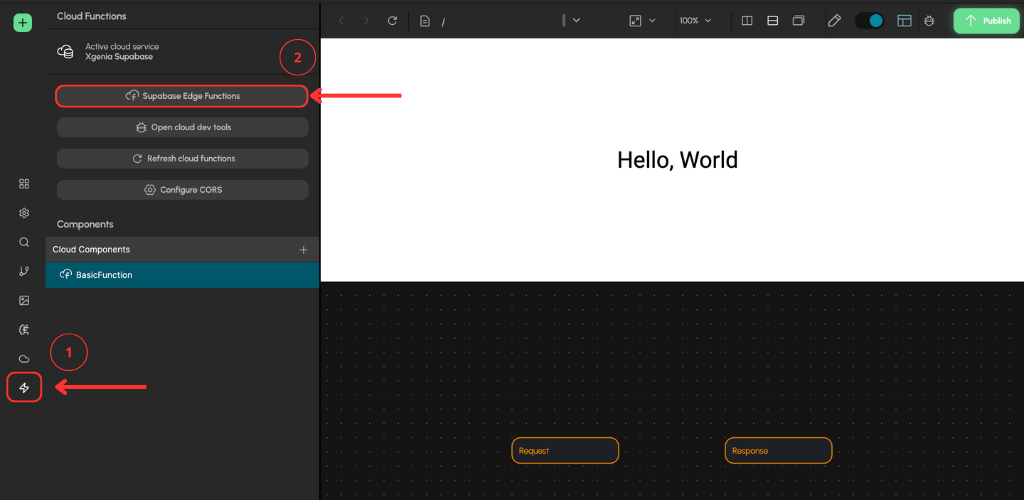
Accessing Edge Functions Panel
Once configured, you can access Edge Functions through the Cloud Function panel:
Exporting Functions to Supabase
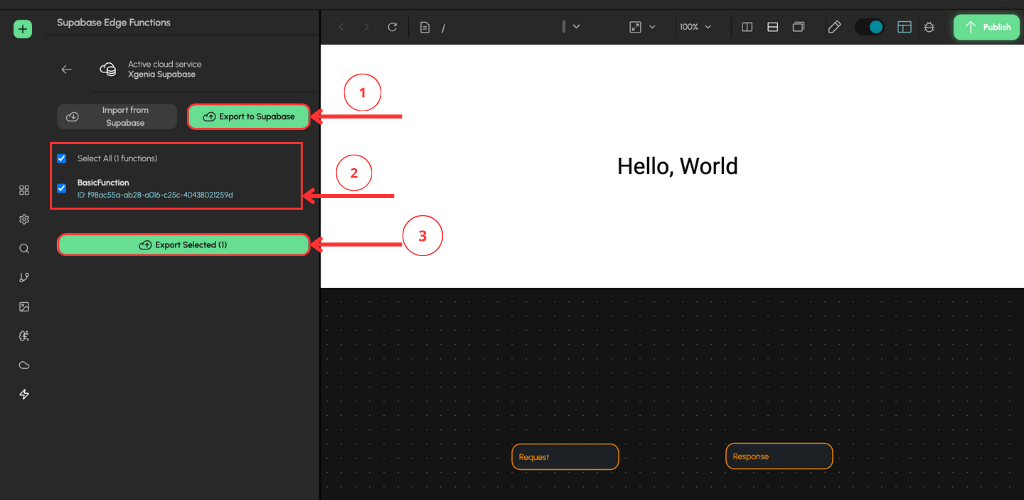
Deploy your XGENIA cloud functions as Supabase Edge Functions:
-
View Local Functions
- The panel shows your local XGENIA cloud functions
- Only functions with cloud function nodes will appear
-
Select Functions to Export
- Check the boxes next to functions you want to deploy
- You can select multiple functions at once
-
Export Functions
- Click "Export Selected Functions"
- XGENIA will convert your cloud functions to Supabase Edge Functions
- Functions will be deployed to your Supabase project
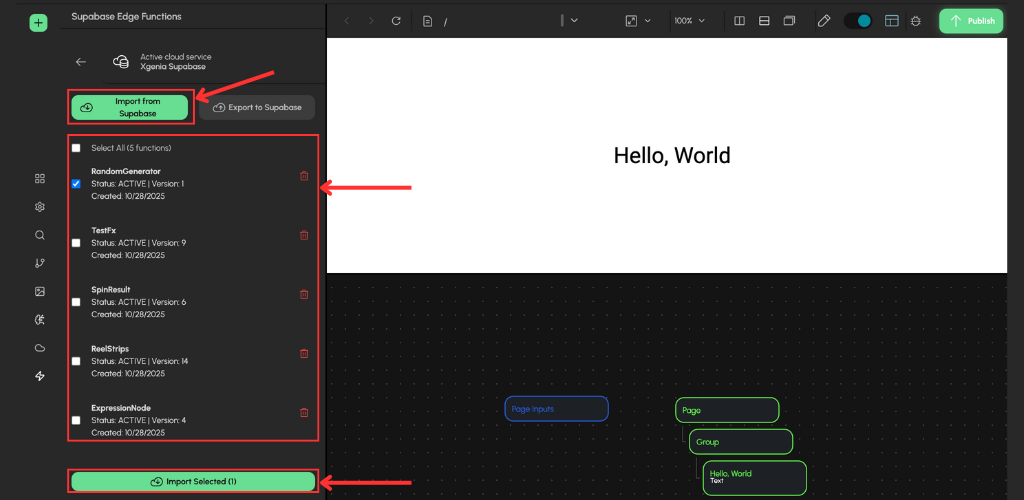
Importing Functions from Supabase
Import existing Edge Functions from your Supabase project into XGENIA:
-
View Available Functions
- The panel shows all Edge Functions created via XGENIA editor from your Supabase project
-
Select Functions to Import
- Check the boxes next to functions you want to import
- You can select multiple functions at once
- Only functions compatible with XGENIA will be available
-
Import Functions
- Click "Import Selected Functions"
- XGENIA will convert Supabase functions to XGENIA cloud function components
- You'll see a success message when complete, you can go back a step by click on the back arrow at the top left corner
Syncing Functions
Keep your functions synchronized between XGENIA and Supabase:
- Bidirectional Sync
- Choose "Import" to pull changes from Supabase
- Choose "Export" to push changes to Supabase
- Note that you will not need to import a function after exporting it, as the changes will be synced automatically on export. However, you should always make sure to export your changes to get the latest changes/effects from your function. Other wise, you will get the last exported function
4. Managing Edge Functions in Supabase Dashboard
NOTE - We highly recommend that you use the XGENIA editor to update your cloud function instead of alter an exported function manually via Supabase editor
Once a cloud function is deployed to the Supabase, you can access it via the Supabase dashboard. To access your Edge Functions directly in the Supabase dashboard:
-
Navigate to Edge Functions
- In your Supabase dashboard, click "Edge Functions" in the sidebar
- View all deployed Edge Functions
-
View Function Details
- Click on any function to see its details
- View function logs and metrics
- Monitor function performance
-
Test Functions
- Use the "Test" button to test functions (found on the top-right corner)
- View real-time logs during execution
5. Best Practices for Edge Functions
Function Naming
- Use descriptive names for your functions
- Use Pascal case when naming your function (eg. RadomNumberGenerator, ReelSpin)
- Avoid space and special characters in function names
Error Handling
- Always include proper error handling in your functions
- Use the Response node's Failure output for errors
- Provide meaningful error messages
Performance Optimization
- Keep functions lightweight and fast
- Avoid long-running operations
- Use appropriate timeout settings
6. Troubleshooting
Common Issues
-
"Missing authorization header" error
- Trying to call a cloud function that have "Allow unauthenticated" request checkbox disabled will return 401 status code and requires registering or logging in with a valid account
-
"Requested function was not found" error
- If you are seeing this error message, that means that the function is not exported to Supabase edge function and therefore doesn't exist on the server. Go to the cloud function panel and export the function.
-
Functions not appearing in import list
- Only functions that are made with XGENIA editor will show up inside of the import tab
- You need to deploy functions from XGENIA first to see them in the list
-
Deployment failures
- Ensure your Supabase project is active
- Verify your function code doesn't have syntax errors
Getting Help
- Supabase Documentation: https://supabase.com/docs
- Edge Functions Guide: https://supabase.com/docs/guides/functions
- XGENIA Support: Check your XGENIA documentation or support channels
Next Steps
Once you have Edge Functions configured:
- Create Your First Function: Build a cloud function in XGENIA
- Deploy to Supabase: Use the export feature to deploy your function
- Test Your Function: You can drag the cloud function node of your choice and call it from the frontend side by connecting it to a valid trigger point.
- Monitor Performance: Use Supabase's built-in monitoring tools for
This setup gives you powerful serverless backend capabilities for your XGENIA applications with easy function management and deployment.
Related Guides
- Setting Up Supabase Service - Basic Supabase setup
- Introduction to Cloud Functions - Learn about XGENIA cloud functions
- Javascript in Cloud Functions - Writing JavaScript in cloud functions